
StbEmu Setup: 7 Easy Steps to Use STB Emulator for IPTV (2026)
StbEmu (short for STB Emulator) is an Android app that turns a phone, tablet, Android TV box or Fire TV device into a virtual MAG box. Instead of a username and password, it logs in to an IPTV service with a MAC address and a portal URL, exactly like a real MAG set-top box. This guide shows you how to set up StbEmu in 7 easy steps, what the “StbEmu codes” people search for really are, and how to fix the errors you are most likely to see.
Everything below works with the free version of the app. You only need two things from your IPTV provider: an activated MAC address and a portal URL.
Table of Contents
Key takeaways
- StbEmu copies the behaviour of a MAG box, so it uses a MAC address + portal URL login, not a username and password.
- The app creates its own MAC address. You send that MAC to your provider, and they activate it on their portal.
- “StbEmu codes” shared on forums are other people’s MAC and portal pairs. They stop working quickly and are not a safe way to watch.
- Most problems come from three things: a MAC that is not activated yet, a wrong portal URL, or a MAC that changed after a reinstall.
- If you do not need the MAG look, an app such as XCIPTV or IPTV Smarters with a username and password is often simpler.
What is StbEmu and how does it work?
A set-top box is the small receiver that sits next to a TV. MAG boxes, made by Infomir, are one of the most common set-top boxes for IPTV. They do not use an app with a login screen. Instead, the provider links the box’s MAC address to an account on a portal, and the box loads that portal when it starts.
The app reproduces that system in software. When you open it, the app pretends to be a MAG model of your choice (for example MAG 250 or MAG 254), shows a MAC address that starts with 00:1A:79, and connects to the portal URL you type in. If the provider has activated that MAC on that portal, the channel list, TV guide and on-demand menu load just as they would on a real box.
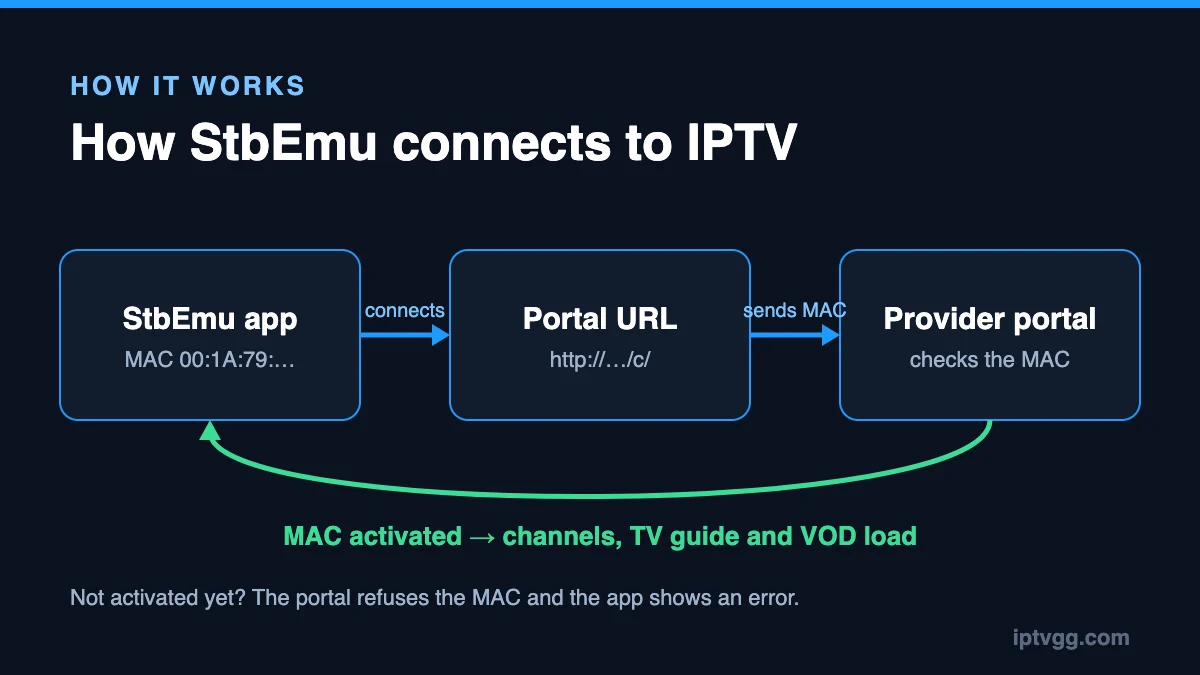
That is why the same two pieces of information appear in every guide for this app. The MAC address tells the portal who you are. The portal URL tells the app where to connect. If you want the background on each one, read our guides to the IPTV MAC address and the IPTV portal URL.
StbEmu vs a real MAG box vs a normal IPTV app
Before you install anything, it helps to know when StbEmu is the right choice. Here is how it compares with the two other common setups.
| StbEmu app | MAG box | Player app (XCIPTV, Smarters) | |
|---|---|---|---|
| Login | MAC address + portal URL | MAC address + portal URL | Username, password, server URL |
| Hardware | Your Android device | Dedicated box | Your device |
| Cost | Free (Pro version removes ads) | You buy the box | Usually free or low cost |
| Look and feel | Same menus as a MAG box | MAG menus | App’s own design |
| Best for | Testing a MAG-style service, or a second screen | A simple TV-only setup | Most phones, TVs and sticks |
In short: choose StbEmu if your provider gives you a portal and you like the MAG interface, or if you want to try a portal service on a phone before buying a box. If your provider sends a username and password, follow our XCIPTV setup for Android instead.
What you need before you set up StbEmu
- An Android device: a phone, tablet, Android TV box or a Fire TV Stick. On a TV device, a remote with a menu button makes the settings easier to reach.
- A stable connection: plan for about 15 Mbit/s per HD stream and 25 Mbit/s per 4K stream. A network cable beats Wi-Fi on a TV box.
- An IPTV subscription that supports portals: not every service offers MAC and portal logins. Ask before you buy.
- Five minutes: the setup itself is quick. Waiting for the provider to activate your MAC can take a little longer.
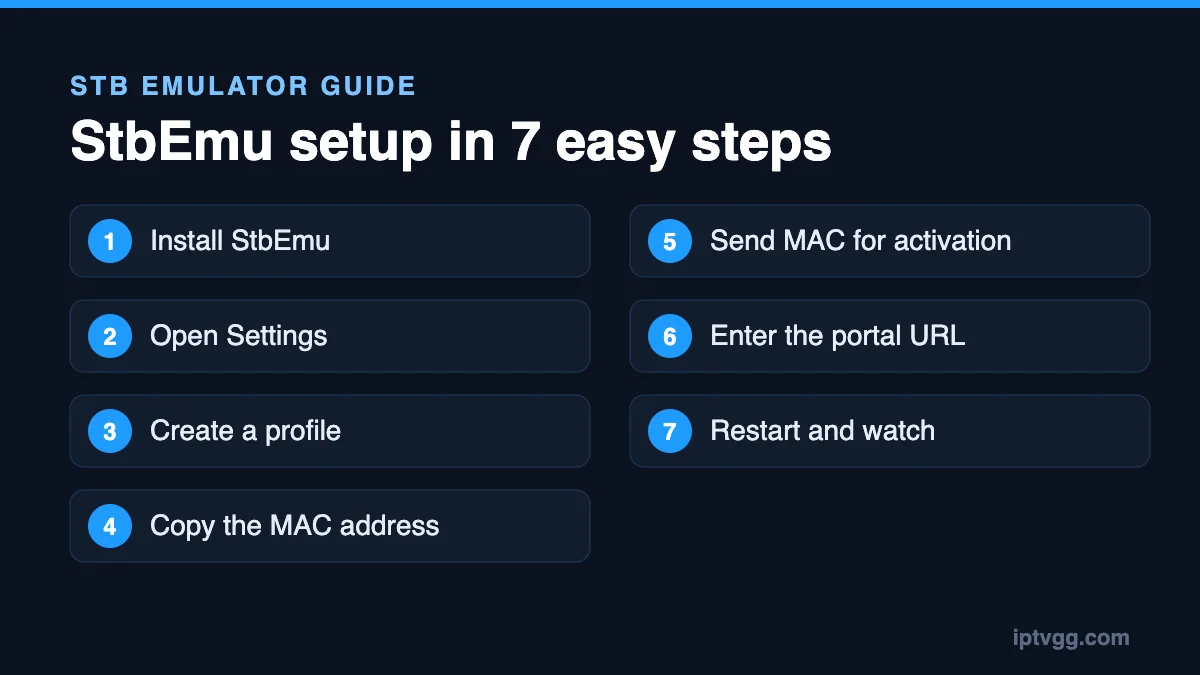
StbEmu setup: 7 easy steps
Step 1: Install StbEmu
On a phone, tablet or Android TV box, open the Google Play Store, search for StbEmu or “STB Emulator” and install the free version. Check the developer name and reviews so you do not install a copy with a similar name. On a Fire TV Stick the app is usually not in the Amazon Appstore, so you install it with a sideloading tool such as Downloader. Only use the developer’s official download, never an APK from a random forum.
Step 2: Open the StbEmu settings
The first time you open the app, it tries to load a default test portal and may show an error. That is normal. Open the menu (the three dots or the menu button on your remote) and choose Settings.
Step 3: Create a profile
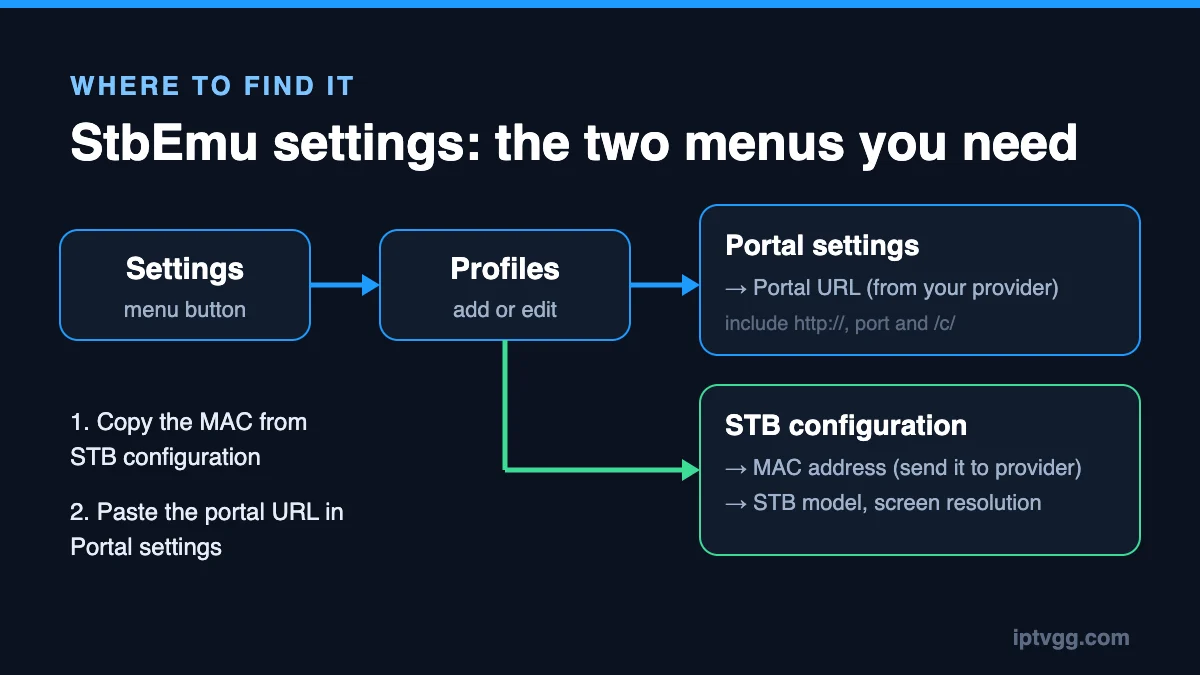
Go to Profiles. You can edit the existing test profile or tap Add profile and give it a clear name, such as the name of your provider. One profile holds one portal URL and one MAC address, so you can keep several services side by side.
Step 4: Find the StbEmu MAC address
Inside the profile, open STB configuration. Here you will see the STB model and the MAC address. Leave the model on the one your provider recommends (MAG 250 or MAG 254 works with most portals). Write the MAC address down exactly as shown, for example 00:1A:79:AB:12:CD. One wrong character and the activation will fail.
If the MAC address shows only zeros (00:1A:79:00:00:00), the app has not generated a real address yet. Restart the app or set a new one in the same menu, then note it down. Our MAC address guide explains the 00:1A:79 prefix in more detail.
Step 5: Send the MAC to your provider
Send the MAC address to your IPTV provider and tell them it is for the STB Emulator app. They activate it on their portal and send you the portal URL. Activation is often quick, but it can take longer outside support hours. Until it is done, the app cannot load any channels.
Step 6: Enter the portal URL in StbEmu
Go back to the profile and open Portal settings, then Portal URL. Type the address exactly as you received it, including http://, the port number if there is one, and the ending, which is often /c/. A missing slash is one of the most common reasons a portal does not load. Our portal URL guide shows what a correct address looks like.
Step 7: Restart StbEmu and load the channels
Close the settings and restart the app. It now connects to the portal with your MAC address. After a few seconds you should see the portal menu with TV, video on demand and the TV guide. If you see an error instead, jump to the troubleshooting table below.
StbEmu settings worth changing
The default settings work, but a few small changes make the app nicer to use, especially on a TV.
- Screen resolution: under STB configuration, pick a resolution that matches your screen. 1280×720 is a safe start for MAG 250 portals. Higher values make text smaller on a phone.
- STB model: if a portal says your box is not supported, try another MAG model that your provider lists.
- Time zone: set the right time zone so the TV guide shows the correct times.
- Keep one profile per service: it stops you from mixing up MAC addresses and portals.
What are “StbEmu codes”?
Many people search for “StbEmu codes” hoping to find a list that unlocks free channels. In practice, a “code” is simply a MAC address and a portal URL that someone else’s subscription has activated. When these pairs are posted on forums or video descriptions, hundreds of strangers try to use them at the same time.
That causes three problems. The portal blocks the MAC as soon as it sees many devices on it, so the code stops working within hours or days. You have no support when it breaks. And you are using access that belongs to another person or that the provider never licensed for you, which can be illegal where you live. The reliable way is the one described above: use the MAC address StbEmu generates for your device and have it activated by a provider you pay.
Common StbEmu errors and how to fix them
| What you see | Likely cause | Fix |
|---|---|---|
| Portal loading error, or the app stays on “Loading portal…” | Wrong or incomplete portal URL, or the server is down | Check every character, including http://, the port and the ending /c/. Then ask your provider if the portal is online. |
| “STB blocked” or “Your STB is not supported” | The selected STB model is not allowed on that portal, or the MAC was blocked | Choose the MAG model your provider recommends. If it still fails, ask whether your MAC was blocked. |
| Authentication failed / MAC not activated | The MAC is not activated yet, or it was typed wrongly | Compare the MAC in STB configuration with the one you sent. Wait for activation and restart. |
| It worked yesterday, not today | The app was reinstalled or its data was cleared, so the MAC changed | Read the MAC again and send the new one to your provider. |
| Channels load but the TV guide is empty or wrong | Wrong time zone, or the guide is still loading | Set the time zone, restart the app and give the guide a few minutes. |
| Buffering on some channels | Weak Wi-Fi or not enough speed | Use a network cable or 5 GHz Wi-Fi and test at our IPTV speed test. |
For deeper fixes, our IPTV portal URL troubleshooting covers seven portal errors one by one. The same checks apply to the emulator and to a real MAG box.
StbEmu, device keys and other apps that use a MAC
This is not the only app that shows a MAC address. Some Smart TV player apps also display a MAC (or device ID) together with a device key. Those apps work differently: you enter the MAC and key on the app maker’s website to upload a playlist, and the app then plays it. There is no portal and no activation by your provider. If you are unsure which kind of app you have, see the device key question in our IPTV MAC address guide.
How to move StbEmu to a new device
Because the MAC address belongs to the app installation, a new phone or TV box means a new MAC. Plan the move so you are not left without TV for an evening.
- Install the app on the new device and create a profile, as in steps 1 to 3.
- Open STB configuration and note the new MAC address.
- Send the new MAC to your provider and ask them to move your subscription from the old one.
- Enter the same portal URL in Portal settings and restart the app.
- Once the new device works, remove the old profile so the two devices do not compete for the same account.
Some versions let you type your own MAC in STB configuration. Only do that if your provider asks you to, because two devices with the same MAC on one portal usually end up blocked.
Tips for a smoother picture on Android TV and phones
- Use a cable on TV boxes. A network cable removes most of the drops you see on busy evenings.
- Pick HD before 4K. If a 4K channel stutters, switch to the HD version and compare.
- Close other streaming apps. Background downloads and other video apps share the same connection.
- Restart the device once a week. Cheap Android boxes in particular run better after a fresh start.
- Test in the evening. That is when home networks and internet providers are busiest, so it shows the real picture.
Is StbEmu safe to use?
The app itself is a normal Android app and is safe when you install it from the official store or the developer’s own download. The risks come from what you load into it. Avoid shared “codes”, avoid modified APKs that promise free channels, and do not post your own MAC address and portal URL in public. Anyone who copies them can use your subscription, and the provider may block the MAC for everyone, including you.
StbEmu FAQ
Is StbEmu free?
Yes. The free version has everything you need to connect to a portal. The paid Pro version mainly removes ads and adds a few extra options. Neither version includes channels: you still need an IPTV subscription.
Can I use StbEmu on a Fire TV Stick?
Yes, but you usually have to sideload it, because it is often not listed in the Amazon Appstore. A remote with a menu button helps, since the app opens its settings from the menu. If you prefer an app from the store, follow our Firestick IPTV guide.
Can I use the same StbEmu MAC on two devices?
Normally no. A portal expects one MAC on one device at a time. Using it on two devices at once often leads to errors or a block. Ask your provider for a plan with more devices instead.
Why did my StbEmu MAC address change?
The MAC belongs to the app installation, not to your device’s network card. If you reinstall the app, clear its data or move to a new phone, the app may create a new MAC. Send the new MAC to your provider so they can move your activation.
Does StbEmu work with M3U links or Xtream Codes?
The emulator is built for MAC and portal logins. If your provider sent an M3U playlist or Xtream Codes login, a player app such as XCIPTV, TiviMate or IPTV Smarters is the better choice.
Can I test StbEmu before I pay for IPTV?
Yes. Ask your provider whether their free trial supports MAC and portal logins. With IPTVGG you can request the 24-hour free trial and tell support that you want to use the STB Emulator app.
Next step: set up StbEmu with your own MAC
StbEmu is a simple way to get the MAG experience on the Android device you already own. Install it, copy its MAC address, have it activated, add the portal URL and restart. If anything goes wrong, check the MAC and the portal URL first, because they cause most problems. For other devices, our IPTV installation guides cover Smart TVs, Firestick, iPhone, Windows and real MAG boxes.