
Looking for a fast and simple IPTV player for your Android phone, tablet or Android TV box? XCIPTV Player is a popular choice: it has a clean interface, a built-in TV guide (EPG), catch-up support and works well even on low-power devices. This guide to XCIPTV Player shows you how to install XCIPTV, log in with your IPTVGG subscription and fix the most common problems.
Time needed: about 5 minutes
What you need: an Android device connected to the internet, and your IPTVGG login details (username, password and server URL sent to you after subscribing).
How XCIPTV works on Android
 XCIPTV Player is an IPTV player app for Android. It does not include any channels itself: it connects to your IPTVGG subscription with the username, password and server URL we send you, then shows your live channels, movies, series and TV guide. Because XCIPTV runs on almost any Android device, the same app works on your phone, your tablet and an Android TV box.
If something does not work, check three places: the Android device (system version, storage and connection), XCIPTV itself (version, settings and login details) and your subscription (active and within the number of devices in your plan).
Which Android devices can run XCIPTV?
| Android device | Controls | Where XCIPTV is installed from | Tip |
|---|---|---|---|
| Android phone | Touch screen | Google Play Store | Best for watching on the go |
| Android tablet | Touch screen | Google Play Store | A bigger screen for movies and series |
| Android TV box or stick | Remote control | Google Play Store on the box | Connect by cable to the TV for the best picture |
| Smart TV with Android TV / Google TV | TV remote | Google Play Store on the TV | See also our Smart TV guide |
Newer Android versions generally run XCIPTV more smoothly. If your device is very old and the Play Store does not offer XCIPTV, a newer box or a Firestick is the easier option.
Compatible devices
| Device | Works with XCIPTV? |
|---|---|
| Android phones and tablets | Yes |
| Android TV boxes (Nvidia Shield, Xiaomi Mi Box, etc.) | Yes |
| Android TV / Google TV (Sony, TCL, Philips, Hisense) | Yes |
| Amazon Fire TV Stick | Yes, see our Firestick guide |
| iPhone / iPad / Apple TV | No, use Smarters Player Lite |
Before you start
- Check your internet speed. We recommend at least 15 Mbps for HD and 25 Mbps for 4K. On a TV box, an Ethernet cable is more stable than Wi-Fi.
- Update your device. Go to Settings → System → Software update (the name may vary by brand).
- Have your login details ready. Don’t have them yet? Start your free trial or see our plans.
Step 1: Install XCIPTV Player on Android
- Open the Google Play Store on your device.
- Search for “XCIPTV Player”.
- Tap Install and wait for the download to finish.
- Tap Open to launch the app.
Note: app availability in the Play Store can change depending on your country and device. If you can’t find XCIPTV, contact us and we’ll help you install it or recommend another player. Avoid downloading APK files from unknown websites.
Step 2: Log in with your IPTVGG subscription
- When XCIPTV opens, you’ll see the login screen.
- Fill in the fields:
- Username: from your welcome message
- Password: from your welcome message
- Server URL: from your welcome message (copy it exactly, including
http://and the port number if there is one)
- Tap Sign In.
- Wait while the app loads your Live TV, Movies, Series and EPG. The first load can take up to a minute.
Tip: on a phone, copy and paste your details from the welcome message instead of typing them. It avoids most login errors.
Step 3: Start watching
- Tap Live TV and choose a category.
- Select a channel to start playing it.
- Open the TV Guide to see what’s on now and next.
- Use Movies and Series for on-demand content.
Useful XCIPTV settings
- Player: if a channel stutters, go to Settings → Player and try another player option.
- EPG update: if the guide is empty, refresh the EPG from the settings menu.
- Favorites: long-press a channel to add it to your favorites for quick access.
For a full tour of the home screen, favourites and player options, read our guide on how to use XCIPTV.
What you can do in XCIPTV
- Live TV: channels in groups, usually by country and type.
- Movies and Series: on-demand titles that you can pause and resume.
- Catch Up: programmes already broadcast, on channels that offer it.
- TV guide (EPG): what is on now and next, and the way into catch-up.
- Favourites and search: your main channels in one list, and search by name.
- Parental control: a PIN to lock categories.
On a phone or tablet you tap and swipe. On an Android TV box, use the arrows and OK button on the remote; long-press OK to open extra options such as adding a channel to Favourites in XCIPTV.
Best Android settings for smooth IPTV
- Keep Android and Google Play services updated. Check Settings → System (or About) → System update, and update apps in the Play Store.
- Turn off battery saver while watching. Battery saver can limit background data and performance, which may interrupt a stream in XCIPTV.
- Allow XCIPTV to run without battery restrictions. On many phones you can set this under Settings → Apps → XCIPTV → Battery.
- Use 5 GHz Wi-Fi or a cable. Android TV boxes often have an Ethernet port. A cable gives the most stable picture.
- Free up storage. Keep at least some free space, because a full device slows down every app.
For connection quality, read how much internet speed IPTV needs.
How to clear the XCIPTV cache on Android
Clearing the cache often fixes freezing, slow menus or a TV guide that does not update. Go to Settings → Apps → XCIPTV → Storage and choose Clear cache. Do not choose Clear data unless you want to reset XCIPTV completely, because that removes your login and favourites.
How to update or reinstall XCIPTV
Updates come through the Google Play Store. Open the Play Store, tap your profile picture, choose Manage apps and device and update XCIPTV if an update is available. To reinstall, uninstall XCIPTV from Settings → Apps, install it again from the Play Store and log in with your IPTVGG details. Only install apps from the Play Store or another trusted official source; you can read about app safety on Google Play Help.
Casting from your Android phone to a TV
If your TV has Chromecast built in, or you use a Chromecast, you can mirror your phone screen: open the quick settings on Android and choose Cast or Screen cast, then select the TV. For a better picture and an easier remote, installing XCIPTV directly on an Android TV box or Google TV device is usually the better choice.
Android compared with other IPTV devices
| Device | App used | Setup time | Guide |
|---|---|---|---|
| Android phone, tablet or box | XCIPTV Player | About 5 minutes | This guide |
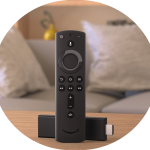 Amazon Firestick | IPTV Smarters Pro (via Downloader) | About 10 minutes | Firestick guide |
 Samsung / LG / Android TV | IPTV Smarters Pro | About 5–10 minutes | Smart TV guide |
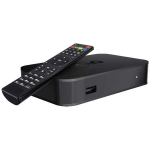 MAG box | Built-in portal (MAC address) | About 10 minutes | MAG guide |
Using XCIPTV on several devices
You can install XCIPTV on your phone, tablet and TV box and use the same login. How many devices can watch at the same time depends on your plan: IPTVGG plans are available for 1, 2, 3 or 4 devices. If one device shows an error while another is playing, you have probably reached the limit. Compare the options on our plans page.
What to do when one channel does not play
If most channels work but one does not, that single stream is usually the cause. Wait a few seconds and try again, then try another channel in the same group. If nothing plays at all, check your connection and login details instead.
Checklist before contacting support
- Your Android device is online and other video apps work.
- Your IPTVGG subscription is active and you use the latest login details.
- Username, password and server URL are typed exactly, including http:// and the port.
- You have restarted the device and the router.
- XCIPTV is up to date and its cache has been cleared.
Still stuck? Contact our support team with your device model, Android version, XCIPTV version and the exact error message. You can also browse all IPTV installation guides or the IPTV FAQ.
Using the TV guide (EPG) in XCIPTV
The electronic programme guide shows what is on now and what comes next for each live channel. In XCIPTV the guide is loaded from your IPTVGG account automatically after login, so you do not need to add a separate EPG link. Open Live TV, pick a channel group, and press right on your remote to see the programme list for that channel.
- Guide looks empty: go back to the dashboard and choose the reload or refresh option so XCIPTV downloads the latest guide data. The first download can take a minute on slower connections.
- Times are shifted: check the time zone and date on your Android device first. If they are correct, use the EPG time offset option in XCIPTV settings to move the guide forward or back by the needed hours.
- Some channels have no guide: not every channel carries programme data. This is normal and does not affect playback.
If the guide still stays empty or shows the wrong time after these checks, follow our step-by-step guide to fixing XCIPTV EPG not working.
Choosing the video player inside XCIPTV
XCIPTV lets you pick which internal player decodes the stream. The default player works well on most Android TV boxes and phones, but some devices handle certain streams better with the alternative player. If a channel shows a black screen with sound, stutters every few seconds, or shows wrong colours, open the XCIPTV settings, switch the player, and test the same channel again. Change one setting at a time so you know which change fixed the issue.
Hardware decoding is usually the best choice for 4K and FHD channels because it uses the video chip in your device instead of the processor. If you see artefacts or a frozen picture, try software decoding for that device and compare.
Movies and series in XCIPTV
Besides live channels, XCIPTV shows the on-demand library from your subscription in separate Movies and Series sections. A few tips make browsing easier:
- Use the search icon instead of scrolling long categories. Type part of the title and wait for results.
- Add titles you watch often to Favourites so they appear at the top.
- For series, open the title first and choose the season, then the episode. XCIPTV remembers where you stopped in many cases, so you can resume later.
- If a movie starts slowly, give it a few seconds to buffer before pressing play again. Pressing repeatedly restarts the connection and makes loading slower.
Parental control in XCIPTV
If children use the same Android TV box, you can protect adult categories with a PIN. Open the XCIPTV settings, find the parental control section, set a PIN you will remember, and choose which categories to lock. Locked categories stay hidden or ask for the PIN before opening. Write the PIN somewhere safe: if you forget it, you may need to clear the app data and log in again.
Internet connection tips for smooth streaming
Most buffering problems come from the local network rather than from the app. Before contacting support, check these points:
- Use a cable when you can. An Ethernet connection is more stable than Wi-Fi on Android TV boxes.
- Prefer 5 GHz Wi-Fi. If your router offers both 2.4 GHz and 5 GHz, connect the device to 5 GHz and keep it close to the router.
- Check your speed. As a general guide, HD channels need a steady connection of around 10 Mbps and 4K content needs more, around 25 Mbps or higher.
- Restart the router and the device once in a while. Android boxes that run for weeks without a restart can become slow.
- Avoid heavy downloads on the same network while you watch live TV.
Keep your XCIPTV login safe
Your username and password give access to your IPTVGG subscription. Do not share them publicly or type them into apps you do not trust. Use them only in the players listed in our guides, and contact support if you think someone else is using your account. If you change devices, log out of the old one first to avoid connection limits.
Troubleshooting XCIPTV Player: common problems and fixes
“Invalid username or password” / login failed
- Check for extra spaces before or after your username and password.
- Make sure the server URL is copied exactly as we sent it.
- Check that your subscription is still active.
Channels are buffering or freezing
- Restart your router and your device.
- Use an Ethernet cable on TV boxes if possible.
- Change the player option in the app settings.
- Pause other devices that are streaming or downloading on the same network.
The TV guide (EPG) is empty
- Refresh the EPG from the app settings and wait a few minutes.
- Log out and log back in.
Still stuck? Contact our support team.
Frequently asked questions
Is XCIPTV Player free?
XCIPTV is a player and does not include any channels. You need an IPTV subscription to watch content.
XCIPTV or IPTV Smarters Pro: which is better?
Both work well with IPTVGG. XCIPTV is lighter and often faster on older devices; IPTV Smarters Pro has more options and runs on more platforms, including Smart TVs and Windows.
Can I use the same subscription on my phone and my TV?
It depends on your plan. Each plan includes a set number of connections. Check the details on our plans page.
Does XCIPTV work on Android TV boxes?
Yes. XCIPTV works on Android TV boxes and sticks as well as phones and tablets. Use the remote to navigate, and connect the box by cable for the most stable picture.
Why does XCIPTV stop when my phone screen turns off?
Some phones limit apps in the background to save battery. Allow XCIPTV to run without battery restrictions in the app settings of your phone, or keep the screen on while watching.
Can I use XCIPTV on mobile data?
Yes, but streaming uses a lot of data. Check your mobile plan and use Wi-Fi whenever you can.
Ready to start watching?
Install XCIPTV, log in with your details, and enjoy your channels on Android in minutes.
See IPTVGG plans · Get a free trial
Other installation guides
- IPTV Smarters Pro on Smart TV (Samsung, LG, Android TV)
- IPTV Smarters on iPhone, iPad and Apple TV
- IPTV Smarters Pro on Windows
- IPTV on Amazon Firestick
- MAG Box setup
- All installation guides
XCIPTV ready? Load a line into it.
A free 24-hour login lets you test the app with real channels before you pay.