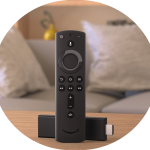
The Amazon Fire TV Stick is one of the cheapest and easiest ways to watch IPTV on any TV with an HDMI port. IPTV Smarters Pro isn’t in the Amazon Appstore, so you install it with a free app called Downloader. This guide to IPTV on Firestick shows you every step: preparing your Firestick, installing IPTV Smarters Pro safely, logging in with your IPTVGG subscription and fixing the most common problems.
Time needed: about 10 minutes
What you need: a Fire TV Stick connected to your TV and the internet, the remote, and your IPTVGG login details (username, password and server URL sent to you after subscribing).
How IPTV on a Firestick works
IPTV delivers live TV channels, movies and series over your internet connection instead of through a satellite dish or cable. The Firestick is the device that connects to your TV, and IPTV Smarters Pro is the player app that shows the content. Your IPTVGG subscription gives you the login details, which tell the app where to find the channels and which content you are allowed to watch.
This means there are three parts to check if something does not work: the Firestick itself (settings, storage and connection), the app (version, cache and login details) and your subscription (active, and within the number of devices in your plan). The sections below cover each of these, so you can find the cause quickly.
Compatible devices
| Device | Supported |
|---|---|
| Fire TV Stick (2nd gen and newer), Fire TV Stick Lite | Yes |
| Fire TV Stick 4K / 4K Max | Yes |
| Fire TV Cube | Yes |
| Fire TV Smart TVs (Fire OS) | Yes |
Note: some of the newest Fire TV models run Amazon’s new operating system (Vega OS), which does not allow installing apps from outside the Appstore. If the steps below don’t work on your device, contact us and we’ll suggest an alternative.
Step 1: Install the Downloader app
- From the Firestick home screen, go to Find → Search.
- Type Downloader and select it from the results.
- Choose the Downloader app (orange icon) and click Download / Get.
- Wait for it to install, then return to the home screen.
Step 2: Allow apps from unknown sources
- Go to Settings → My Fire TV.
- If you don’t see Developer Options: open About, select your device name and press the OK button on the remote 7 times until you see “You are now a developer”. Then go back.
- Open Developer Options → Install unknown apps.
- Find Downloader and turn it ON.
This setting only lets Downloader install apps. Only install apps from sources you trust.
Step 3: Download IPTV Smarters Pro with Downloader
- Open the Downloader app and dismiss the first-time prompts.
- Select the address box on the Home tab.
- Type the official IPTV Smarters website:
iptvsmarters.comand click Go. - On the website, open the Downloads section and select the Android APK download.
- When the download finishes, click Install.
- When you see App installed, click Done, then choose Delete to remove the installer file and free up space. Confirm with Delete again.
Security tip: don’t download IPTV apps from short links or unknown websites. They are a common way to spread malware. Use the official website, or ask our support team for help.
Step 4: Log in with your IPTVGG subscription
- Open IPTV Smarters Pro from Your Apps & Channels (hold the Home button and choose Apps).
- Accept the terms, then choose “Login with Xtream Codes API”.
- Fill in the fields:
- Any name: type anything, for example IPTVGG
- Username: from your welcome message
- Password: from your welcome message
- URL: the server URL from your welcome message (copy it exactly, including
http://and the port number if there is one)
- Click Add User and wait while your Live TV, Movies and Series load.
Tip: to find the app faster next time, move it to the front of your apps list: highlight it, press the menu button (☰) and choose Move to front.
Step 5: Start watching and load the TV guide
- Select Live TV, choose a channel group, then pick a channel.
- Press the center button on the remote to switch to full screen.
- On the home screen, click Install EPG to load the program guide. No EPG link is needed.
What you can do with IPTV Smarters Pro on your Firestick
Once IPTV Smarters Pro is installed and you are logged in, your Firestick works like a full IPTV receiver. The home screen of the app is split into a few main areas, and it helps to know what each one does before you start browsing.
- Live TV: all live channels, organised into channel groups (for example by country or by type). Pick a group on the left, then a channel on the right.
- Movies: the on-demand movie library, also sorted into categories. Select a title to see its description and press Play.
- Series: TV shows with seasons and episodes. The app remembers where you stopped, so you can resume an episode later.
- Catch Up: on channels that support it, you can go back and watch programmes that were already broadcast.
- TV guide (EPG): the programme schedule for live channels, once you have clicked Install EPG as shown in Step 5.
- Favourites and search: add the channels you watch most to Favourites, and use the search icon to find a channel or title quickly with the Firestick remote.
- Parental control: in the app settings you can lock categories behind a PIN if children use the same Firestick.
On the Firestick remote, the up and down buttons change channel while a stream is playing, and the back button returns you to the channel list. Pressing the center button during playback shows the information bar with the current programme.
Best Firestick settings for smooth IPTV streaming
A Firestick has limited memory and storage, so a few settings make a real difference to how smoothly IPTV plays. None of these changes affect your Amazon account, and you can switch them back at any time.
- Turn off data monitoring. Go to Settings → Preferences → Data Monitoring and switch it off. This stops the Firestick from warning you or limiting quality when you stream a lot.
- Turn off usage data collection. In Settings → Preferences → Privacy Settings, turn off Device Usage Data and Collect App Usage Data. This frees a little memory and bandwidth for streaming.
- Disable featured video autoplay. In Settings → Preferences → Featured Content, turn off video and audio autoplay so the Firestick home screen does not load trailers in the background.
- Keep enough free storage. Check Settings → My Fire TV → About → Storage. If space is low, uninstall apps you no longer use and clear the cache of large apps.
- Restart regularly. Restarting the Firestick (Settings → My Fire TV → Restart) clears its memory. A restart once a week keeps IPTV running smoothly.
- Use the best connection you can. If your router has a 5 GHz Wi-Fi network, connect the Firestick to it. For the most stable picture, especially in 4K, use an Ethernet adapter for a wired connection.
If you are unsure whether your internet connection is fast enough, read our guide on how much internet speed IPTV needs.
How to add IPTV Smarters Pro to your Firestick home screen
New apps on a Firestick are not always shown on the home screen. To open IPTV Smarters Pro with one click:
- Press and hold the Home button on the remote, then select Apps.
- Scroll to IPTV Smarters Pro (new apps are usually at the bottom of the list).
- Press the Options button (the one with three horizontal lines) and choose Move to front.
The app now appears in the first row of your apps, so you can start watching IPTV on Firestick straight from the home screen.
How to update IPTV Smarters Pro on Firestick
Because IPTV Smarters Pro is installed outside the Amazon Appstore, the Firestick does not update it automatically. When a new version is released, the app may show an update message. If it does not, you can update it yourself:
- Open Downloader and download the latest Android version of IPTV Smarters Pro, in the same way as in Step 3.
- Choose Install. The new version installs over the old one, and your login and favourites are normally kept.
- Delete the downloaded file in Downloader to free storage on your Firestick.
You can check the official IPTV Smarters website at iptvsmarters.com for the latest app versions. The Downloader app itself is developed by AFTVnews.
Keep your Firestick secure after installing IPTV

Allowing apps from unknown sources is needed for the installation, but you do not have to leave it on. After IPTV Smarters Pro is installed, go back to Settings → My Fire TV → Developer Options → Install unknown apps and switch Downloader off. You can turn it on again the next time you need to update the app.
Only download apps from the official source, and never install files that someone sends you through a message or a random website. Keep your IPTVGG login details private: anyone who has your username, password and server URL could use your connections.
Firestick compared with other IPTV devices
A Firestick is a good choice if your TV has no smart apps or if its built-in apps are slow. Here is how setting up IPTV on a Firestick compares with the other devices we support:
| Device | App used | Setup time | Guide |
|---|---|---|---|
| Amazon Firestick | IPTV Smarters Pro (via Downloader) | About 10 minutes | This guide |
| Samsung / LG / Android TV | IPTV Smarters Pro | About 5–10 minutes | Smart TV guide |
 Android phone or box | XCIPTV Player | About 5 minutes | Android guide |
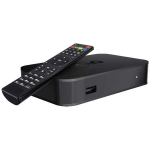 MAG box | Built-in portal (MAC address) | About 10 minutes | MAG guide |
The main difference is that a Firestick needs the Downloader app because IPTV Smarters Pro is not in the Amazon Appstore. Once installed, the login steps are the same as on a Smart TV.
Watching IPTV on more than one Firestick
If you have a Firestick in the living room and another in a bedroom, you can install IPTV Smarters Pro on both and log in with the same details. How many devices can watch at the same time depends on your plan: IPTVGG plans are available for 1, 2, 3 or 4 devices watching at the same time. If a second Firestick shows an error while the first one is playing, you have probably reached the limit of your plan. You can compare the options on our plans page.
Fixing sound, subtitles and picture problems
Most picture and sound problems on a Firestick come from the video player, not from the channel itself. Try these steps in order:
- No sound or wrong language: while a movie or series is playing, open the player options and choose another audio track. Some titles offer several languages.
- Subtitles: in the same player options, turn subtitles on or off, or choose another subtitle track if the title has one.
- Black screen with sound, or stuttering picture: in IPTV Smarters Pro settings, open the player selection and switch to another player, then play the channel again.
- Picture does not fill the screen: use the aspect ratio option in the player to switch between fit, fill and zoom.
Checklist before contacting support
If IPTV on your Firestick still does not work, check these points first. They solve most problems in a few minutes:
- Your Firestick is connected to the internet and other apps can stream.
- Your IPTVGG subscription is active and you are using the latest login details we sent.
- The username, password and URL are typed exactly, with no extra spaces.
- You have restarted the Firestick and your router.
- IPTV Smarters Pro is up to date and its cache has been cleared.
If the problem continues, contact our support team and tell us your Firestick model, the app version and the exact error message. You can also browse all our IPTV installation guides or the IPTV FAQ.
Troubleshooting IPTV on Firestick: common problems and fixes
I can’t find Developer Options
Go to Settings → My Fire TV → About, highlight your device name and press OK 7 times. Developer Options will then appear in the My Fire TV menu.
“There was a problem parsing the package” / install failed
- Make sure you downloaded the Android version, not the Windows one.
- Delete the file in Downloader and download it again.
- Check that your Firestick has enough free storage (Settings → My Fire TV → About → Storage).
“Invalid username or password” / authorization failed
- Check for extra spaces before or after your username and password.
- Make sure the URL is copied exactly as we sent it.
- Check that your subscription is still active.
Channels are buffering or freezing
- Restart the Firestick: Settings → My Fire TV → Restart.
- Move your router closer, or use an Amazon Ethernet adapter for a wired connection.
- Clear the app cache: Settings → Applications → Manage Installed Applications → IPTV Smarters Pro → Clear cache.
- In the app settings, try changing the player option.
Still stuck? Contact our support team.
Frequently asked questions
Is it safe to allow unknown apps on my Firestick?
Yes, as long as you only install apps from trusted sources, like the official IPTV Smarters website. You can turn the setting off again after installing.
Which Firestick is best for IPTV?
The Fire TV Stick 4K or 4K Max gives the smoothest experience, especially for 4K channels, thanks to more memory and faster Wi-Fi.
Can I use another IPTV app on Firestick?
Yes. Many players work on Firestick, for example XCIPTV. The login steps are similar.
Can I use the same subscription on my Firestick and my phone?
It depends on your plan. Each plan includes a set number of connections. Check the details on our plans page.
Ready to start watching?
Install IPTV Smarters Pro on your Firestick, log in with your details, and enjoy your channels in minutes.
See IPTVGG plans · Get a free trial
Does IPTV on Firestick work in 4K?
Yes, if your device and TV support it. The Fire TV Stick 4K, Fire TV Stick 4K Max and Fire TV Cube can play 4K streams. You also need a 4K TV and a fast, stable internet connection. On other Firestick models, 4K channels play in lower resolution.
Why does IPTV Smarters Pro close by itself on my Firestick?
This usually happens when the Firestick is low on memory or storage. Restart the Firestick, clear the app cache (Settings → Applications → Manage Installed Applications → IPTV Smarters Pro → Clear cache), and uninstall apps you no longer use.
Do I need to reinstall the app after a Firestick update?
No. Fire OS updates normally keep your installed apps and settings. If IPTV Smarters Pro stops opening after an update, restart the Firestick first, then reinstall the app with Downloader if the problem continues.
Can I use IPTV on my Firestick when I travel?
Yes. Take your Firestick with you, connect it to the Wi-Fi where you are staying and open IPTV Smarters Pro as usual. Hotel Wi-Fi can be slow or shared by many guests, so picture quality may be lower than at home.
Will IPTV Smarters Pro slow down my Firestick?
No, not by itself. If your Firestick feels slow, the cause is usually low storage or many apps running in the background. Follow the settings tips above and restart the device.
Other installation guides
- IPTV Smarters Pro on Smart TV (Samsung, LG, Android TV)
- IPTV Smarters on iPhone, iPad and Apple TV
- IPTV Smarters Pro on Windows
- XCIPTV on Android
- MAG Box setup
- All device installation guides
Firestick set up? Add a line and watch.
The 24-hour trial needs no card. We send the login on WhatsApp in minutes.