
IPTV Channel Guide (EPG): 6 Easy Fixes and How It Works (2026)
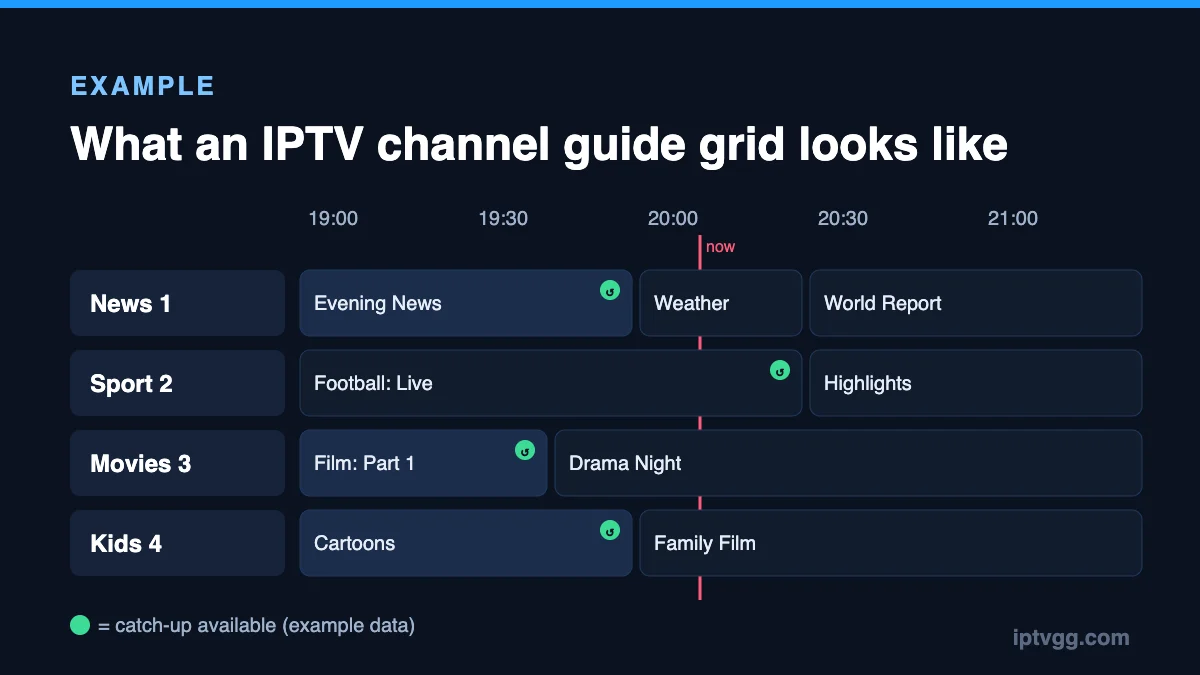
An IPTV channel guide is the TV schedule inside your IPTV app: the grid that shows what is on now, what comes next and, on some services, what you can still watch with catch-up. It is also called the EPG, short for Electronic Program Guide. This guide explains how an IPTV channel guide works, how to load it in the most popular apps, and how to fix the usual problems: an empty guide, wrong times, or the wrong programmes on a channel.
You do not need technical skills. Most guide problems come down to three things: the app has not downloaded the guide yet, the time zone is wrong, or a channel is not matched to its guide data.
Table of Contents
Key takeaways
- The IPTV channel guide is a separate file from the channel list. Your app downloads it from the provider and then matches it to each channel.
- With an Xtream Codes login (username, password, server URL), most apps load the guide automatically.
- With an M3U playlist, the app needs an EPG URL, and each channel needs a matching ID.
- On a MAG box or StbEmu, the guide comes from the portal. You do not add anything yourself.
- Wrong times are almost always a time zone or time offset setting, not a broken guide.
What is an IPTV channel guide (EPG)?
On cable or satellite TV, the electronic program guide arrives with the TV signal. IPTV works differently. The video streams and the schedule are delivered separately over the internet, and your player app puts them together.
The schedule is usually an XMLTV file: a long list of programmes with a channel ID, a start time, an end time, a title and often a short description. Your app downloads that file, stores it, and shows it as a grid next to the channels. That is why the IPTV channel guide can be empty even when every channel plays fine. The streams work, but the schedule has not been downloaded or matched yet.

What the IPTV channel guide shows
- Now and next: the programme on air and the one that follows, often shown in the channel list itself.
- The full grid: several hours or days ahead, so you can plan your evening.
- Programme details: title, time and a short description when the provider includes one.
- Catch-up markers: on channels with catch-up, past programmes in the guide can be opened and watched again for a limited time.
- Reminders and recordings: some apps let you set a reminder from the guide. Recording depends on the app and the device.
Channel list vs channel guide: what is the difference?
People often mix up the two, so here is the short version.
| Channel list | IPTV channel guide (EPG) | |
|---|---|---|
| What it is | The channels you can watch | The schedule of programmes on those channels |
| Where it comes from | Your login or M3U playlist | A separate EPG file or the portal |
| When it updates | When the provider adds or removes channels | Every day, as new schedules arrive |
| If it is missing | You cannot watch the channel | The channel plays, but shows “No information” |
Want to see which countries and categories are available before you think about the guide? Our IPTV channel list groups them by country.
How to load the IPTV channel guide in your app
How you load the guide depends on the type of login your provider gave you. Menu names change a little between app versions, so look for words such as “EPG”, “TV guide” or “Update EPG”.
With an Xtream Codes login
If you log in with a username, password and server URL, the app knows where to find the guide. In most apps it downloads by itself the first time you open live TV. If it stays empty, open the app’s settings and choose the option to refresh or update the EPG, then wait a few minutes. More about this login type in our Xtream Codes guide.
With an M3U playlist
An M3U playlist often contains only the channels. Some playlists include the guide address in their first line, but many do not. In that case, ask your provider for the EPG URL and add it in the app’s EPG settings, usually under something like “EPG sources” or “Add EPG”. The app then matches each channel to the guide using the ID written in the playlist.
On a MAG box or in StbEmu
Portal setups are the easiest. The portal sends the IPTV channel guide together with the channel list, so there is nothing to add. If the guide is empty, check the date, time and time zone on the box first. See our MAG box guide or the StbEmu setup guide.
In XCIPTV, IPTV Smarters and TiviMate
- XCIPTV: the guide loads after login. If it is empty or wrong, follow our step-by-step XCIPTV EPG fixes.
- IPTV Smarters: with an Xtream login the guide loads with the channels. Look for a refresh or install EPG option in the settings if it does not appear.
- TiviMate: the EPG settings let you see the guide sources, update them by hand and set how often they refresh.
Why your IPTV channel guide is empty or wrong

| Problem | Likely cause | Fix |
|---|---|---|
| The whole guide is empty | The first download has not finished, or the app has no EPG source | Wait a few minutes after login, then update the EPG. With M3U, add the EPG URL from your provider. |
| Times are one or more hours off | Wrong time zone on the device or a time offset in the app | Set the correct time zone on the device, then check the app’s EPG time offset (it should usually be 0). |
| Some channels show “No information” | Those channels have no guide data, or their ID does not match | Ask support whether guide data exists for them. In apps like TiviMate you can assign the right guide channel by hand. |
| A channel shows another channel’s programmes | Wrong ID match | Change the guide channel for that channel, or ask support to fix the ID. |
| The guide stops after a day or two | The app does not refresh the EPG | Turn on automatic updates in the EPG settings, or update by hand. |
| The guide is slow to open | A very large EPG file on a weak device | Hide channel groups you never watch, so the app loads less data. |
How channel matching works (tvg-id explained)
Matching is the step most people never see, and it explains most “wrong programme” problems. In an M3U playlist, each channel line can carry a small label called tvg-id. The EPG file uses the same label for every programme it lists. When the two labels are identical, the app knows that this schedule belongs to that channel.
If the provider renames a channel or changes its ID, the link breaks. The channel keeps playing, but the guide shows nothing, or worse, it shows the schedule of a similar channel. With an Xtream login the provider handles this matching on the server, which is one reason why Xtream logins usually give a cleaner IPTV channel guide than a plain M3U file.
You do not have to edit any files yourself. In apps that support it, you can open the channel, choose a different guide channel from the list and save. Otherwise, report the channel to support and they can correct the ID on their side.
Catch-up and the IPTV channel guide
Catch-up, sometimes called timeshift or replay, lets you watch a programme that has already aired. It lives inside the guide. You scroll back to an earlier time slot, and programmes that can be replayed show a small icon or a different colour. Select one and it plays from the start.
- Catch-up is available only on channels where the provider records it, not on every channel.
- The replay window is limited, often a few days, and it can differ per channel.
- If the guide times are wrong, catch-up can open the wrong part of the programme. Fix the time zone first.
- Not every app supports catch-up. If you rely on it, test it during a free trial.
How to report a guide problem to support
A clear report gets a faster fix. Before you write to your provider, collect these details:
- The app name and version, and the device (for example “TiviMate on Fire TV Stick 4K”).
- Your login type: Xtream Codes, M3U playlist or MAG portal.
- One or two channel names that show no information or the wrong programmes.
- What you see: an empty guide, wrong times, or another channel’s schedule.
- A photo of the guide screen, if possible.
- What you already tried: updating the EPG, checking the time zone, restarting the app.
With those details, support can tell straight away whether the issue is on their side (missing or wrong guide data) or in the app settings on your device.
How often does the IPTV channel guide update?
Providers usually refresh their guide data every day, and many guides cover a few days ahead. Your app keeps its own copy, so what you see depends on when the app last downloaded it. A good habit is to let the app update the guide automatically once a day. If you watch live sport or news, check the guide on the day itself, because late changes to the schedule are common.
Tips to get more out of the IPTV channel guide
- Make a favourites group. A short list of your own channels makes the guide faster and easier to read.
- Hide groups you never watch. Fewer channels means less guide data to load, especially on Firestick and older TVs.
- Use the search. Many apps can search the guide for a programme name, which is handy for films and matches.
- Check catch-up channels. If you missed something, open the guide, go back in time and look for the catch-up icon.
- Keep the device clock right. Automatic date and time on the device prevents most “wrong time” problems.
Which app has the best IPTV channel guide?
There is no single best app for everyone. TiviMate is popular on Android TV and Firestick for its clear grid and its EPG controls. XCIPTV is free and simple. IPTV Smarters works on many devices, including Smart TVs and Windows. On a MAG box or in StbEmu, you get the portal’s own guide. Pick the app that suits your device first, then learn its guide settings. Our IPTV installation guides show which app fits each device.
IPTV channel guide FAQ
Is the IPTV channel guide included in my subscription?
With most IPTV services, yes. The guide data comes with the login, and you do not pay extra for it. Coverage varies by channel, so a few small channels may have no schedule.
Can I use a free EPG from another website?
Some apps let you add any EPG URL, but a third-party guide will only match your channels if its IDs are the same as in your playlist. In practice, the guide from your own provider is the one that lines up best.
Why does the guide work on my phone but not on my TV?
Each device and app keeps its own copy of the guide and its own time settings. Update the EPG on the TV app and check the TV’s time zone. If you use a different app on the TV, its EPG settings may also be different.
Does the IPTV channel guide use a lot of data?
Not compared with video. A guide file is text, so even a large one is small next to a few minutes of HD streaming. It can still take a moment to process on a slow device.
What is an EPG URL?
It is the web address of the guide file. Apps that use an M3U playlist need it to download the IPTV channel guide. With an Xtream login the app builds this address for you, so you rarely have to type it. Treat it like your login details and do not share it, because it often contains your username and password.
Can I test the channel guide before I buy?
Yes. A free trial is the best way to check that the guide shows the channels you care about. With IPTVGG you can request the 24-hour free trial and open the guide on your own TV.
Next step: check your IPTV channel guide tonight
Open live TV in your app, look at the guide and run through the checklist above: let it download, update it, check the time zone, then fix single channels. If the guide is still empty after that, send your provider the app name, device and one channel that shows no information. That gives support everything they need to fix it quickly. And if you are still choosing an app, start with our XCIPTV walkthrough, which covers the TV guide screen step by step.