
IPTV Setup Tutorials
Pick your device, choose a player app, then follow the steps.
Fire TV setup guide
The player is the app you watch with. Your IPTVGG subscription works with any player that supports Xtream Codes login. These three are the ones we suggest. Not sure? Pick OTT Navigator.
⚠ New Fire TV Stick 4K Select with Vega OS? It can’t install these Android player apps. Message us on WhatsApp and we will find a way for your model.

OTT Navigator
Clean and simple. Live TV, movies and series all open in the free version.

TiviMate
The best TV guide. Live TV works for free; movies and series need TiviMate Premium.

iMPlayer
Modern look. Live TV, movies and series open; some extras need iMPlayer Premium.
Install OTT Navigator on Fire TV
- On the Fire TV home screen, open Find → Search, type Downloader and install it.
- Go to Settings → My Fire TV → Developer options and allow Install unknown apps for Downloader.
- Open Downloader and download the Android TV version of OTT Navigator from the official OTT Navigator website, then tap Install.
- Open OTT Navigator and choose to add a provider with Xtream Codes login.
- Type the server URL, username and password exactly as we sent them to you.
- Save and wait a moment while the channels, movies and series load.
Install TiviMate on Fire TV
- Install Downloader from Find → Search and allow it under Settings → My Fire TV → Developer options → Install unknown apps.
- In Downloader, get TiviMate from its official website and install it.
- Open TiviMate and select Add playlist → Xtream Codes.
- Enter the server URL, then your username and password, and press Next.
- Give the playlist a name (for example IPTVGG) and press Done. Channels and the TV guide load in a minute.
Install iMPlayer on Fire TV
- Install Downloader and allow it under Developer options → Install unknown apps.
- In Downloader, get iMPlayer from its official website and install it.
- Open iMPlayer and add a new playlist with Xtream Codes login.
- Enter your server URL, username and password, then save.
- Wait for the content to load, then open Live TV.
Compare the players
| Player | Cost | Movies and series | Best for |
|---|---|---|---|
| OTT Navigator | Free | Included | A simple start |
| TiviMate | Free + Premium | Need TiviMate Premium | TV guide and live channels |
| iMPlayer | Free + Premium | Included | A modern look |
Questions about players
Which player should I choose?
If you are not sure, start with the free one we suggest first. All three work with your IPTVGG login, and you can switch later.
Is TiviMate or iMPlayer Premium included in my subscription?
No. Premium is sold by the app maker, not by IPTVGG. Your subscription gives you the channels, movies and series; the free players already show them.
Can I use another player?
Yes. Any player that supports Xtream Codes login works. We only explain the ones we suggest.
Can I switch players later?
Yes. Install the new player and log in with the same details. It takes a couple of minutes.
Where are my server URL, username and password?
In the WhatsApp message and email we send you when your subscription or free trial is activated.
Nothing loads after I log in
Check that the details are typed exactly, with no extra spaces, then restart the device. Still stuck? Message us on WhatsApp.
Prefer IPTV Smarters Pro? Read our full Firestick guide. Stuck? Message us on WhatsApp.
Android TV / Box setup guide
Works on Chromecast with Google TV, Nvidia Shield, TCL, Sony, Philips, Hisense Android TVs and most Android boxes. Not sure? Pick XCIPTV.

XCIPTV
Live TV, movies and series all open. Shows small ads.
TiviMate
The best TV guide. Live TV is free; movies and series need TiviMate Premium.
iMPlayer
Modern look. Live TV, movies and series open; some extras need Premium.
Install XCIPTV on Android TV
- Open the Play Store (or Apps on Google TV) and search XCIPTV.
- Install it and open the app.
- Enter your username, password and server URL exactly as we sent them.
- Press Sign in and wait while the channels and the TV guide load.
Install TiviMate on Android TV
- Search TiviMate in the Play Store and install it.
- Open it and select Add playlist → Xtream Codes.
- Enter the server URL, username and password, then press Next.
- Name the playlist and press Done.
Install iMPlayer on Android TV
- Search iMPlayer in the Play Store and install it.
- Open it and add a playlist with Xtream Codes login.
- Enter your server URL, username and password, then save.
- Wait for the content to load.
Compare the players
| Player | Cost | Movies and series | Best for |
|---|---|---|---|
| XCIPTV | Free with ads | Included | A simple start |
| TiviMate | Free + Premium | Need TiviMate Premium | TV guide and live channels |
| iMPlayer | Free + Premium | Included | A modern look |
Questions about players
Which player should I choose?
If you are not sure, start with the free one we suggest first. All three work with your IPTVGG login, and you can switch later.
Is TiviMate or iMPlayer Premium included in my subscription?
No. Premium is sold by the app maker, not by IPTVGG. Your subscription gives you the channels, movies and series; the free players already show them.
Can I use another player?
Yes. Any player that supports Xtream Codes login works. We only explain the ones we suggest.
Can I switch players later?
Yes. Install the new player and log in with the same details. It takes a couple of minutes.
Where are my server URL, username and password?
In the WhatsApp message and email we send you when your subscription or free trial is activated.
Nothing loads after I log in
Check that the details are typed exactly, with no extra spaces, then restart the device. Still stuck? Message us on WhatsApp.
An app is missing from your Play Store? Message us on WhatsApp and we will help.
Formuler / Dreamlink setup guide

MyTVOnline
The player that comes with Formuler Z boxes (MyTVOnline 2 or 3).
DOL2
The player for Dreamlink boxes.
Set up MyTVOnline on Formuler
- Open MyTVOnline 2 or 3 from the Formuler home screen.
- Go to the connections menu and choose to add a new connection with Xtream Codes login.
- Enter the server URL, username and password we sent you.
- Save and connect. The channel list loads after a short moment.
Set up DOL2 on Dreamlink
- Open the DOL2 app on your Dreamlink box.
- Add a new account with Xtream Codes login.
- Enter your server URL, username and password, then save.
- Open the account to load your channels.
Stuck on a step? Send us a photo on WhatsApp.
Smart TV setup guide
Third-party players on Samsung and LG TVs often have a free trial period and then need their own licence, which is not part of your IPTVGG subscription. A Firestick is a cheap way to avoid this.
Hot Player
Available in many TV app stores. You add your playlist from its website.
Set up Hot Player on a Smart TV
- Open your TV's app store, search Hot Player and install it.
- Open the app and write down the device details it shows on screen.
- On your phone or computer, open the official Hot Player website and add a playlist for that device with Xtream Codes login (server URL, username and password).
- Restart Hot Player on the TV. Your channels appear in the list.
Not sure which app your TV supports? Tell us your TV model on WhatsApp.
Roku setup guide
Hot Player has a free trial period and then needs its own licence, which is not part of your IPTVGG subscription.
Hot Player
Install it from the Roku Channel Store, then add your playlist from its website.
Set up Hot Player on Roku
- On your Roku, open Streaming Channels → Search Channels, search Hot Player and add it.
- Open Hot Player and write down the device details shown on screen.
- On your phone or computer, open the official Hot Player website and add a playlist for that device with your server URL, username and password.
- Restart Hot Player on the Roku to load the channels.
Stuck? Message us on WhatsApp.
iPhone, iPad and Apple TV setup guide

Smarters Player Lite
Works on iPhone, iPad and Apple TV with Xtream Codes login.
Set up Smarters Player Lite
- Open the App Store, search Smarters Player Lite and install it.
- Open the app and choose Login with Xtream Codes API.
- Type any name, then your username, password and server URL.
- Tap Add user and wait for the content to load.
More details and tips in our full Apple guide.
Windows setup guide

IPTV Smarters Pro
The Windows version of IPTV Smarters Pro, with Xtream Codes login.
Set up IPTV Smarters Pro on Windows
- Download the Windows version of IPTV Smarters Pro from its official website and install it.
- Open the app and choose Login with Xtream Codes API.
- Enter any name, then your username, password and server URL.
- Click Add user and wait for the channels to load.
Screens and tips in our full Windows guide.
Android phone and tablet setup guide
XCIPTV
Live TV, movies and series all open.
IPTV Smarters Pro
A popular player with a simple layout.
Set up XCIPTV on Android
- Open the Play Store, search XCIPTV and install it.
- Open the app and enter your username, password and server URL.
- Tap Sign in and wait for the content to load.
Set up IPTV Smarters Pro on Android
- Install IPTV Smarters Pro from the Play Store.
- Open it and choose Login with Xtream Codes API.
- Enter any name, then your username, password and server URL, and tap Add user.
More help in our full Android guide.
BuzzTV setup guide

BuzzTV player
Use the player that comes with your BuzzTV box.
Set up the BuzzTV player
- Open the BuzzTV player from the box's home screen.
- Add a new profile or account with Xtream Codes login.
- Enter your server URL, username and password, then save.
- Open the profile to load your channels and TV guide.
Stuck? Send us a photo on WhatsApp.
MAG box setup guide
MAG portal
We activate your box's MAC address and send you the portal address.
Set up a MAG box
- Find the MAC address on the sticker under your MAG box and send it to us when you order.
- On the box, open Settings → System settings → Servers → Portals.
- Type the portal URL we send you in the Portal 1 field and save.
- Restart the box. The portal and your channels load after the restart.
Full details in our MAG box guide.
Not sure your device works? Test it first.
Start the 24-hour free trial, install the app from your device guide, and check the picture on your own connection before you pay.
Before you start
- An active subscription or free trial. See our IPTV plans or request a free trial.
- Your login details. After payment we send your username, password and server URL by WhatsApp and email. For a MAG box, setup works with your box’s MAC address instead.
- A device connected to the internet. A stable connection matters more than anything else. Read how much internet speed you need for IPTV, and check your current speed with our free IPTV speed test.
Which setup guide should I follow?
| Your device | App used in the guide | Time needed | Guide |
|---|---|---|---|
| Samsung, LG or Android / Google TV | IPTV Smarters Pro | About 5–10 minutes | Smart TV setup |
| Amazon Fire TV Stick | IPTV Smarters Pro (installed with Downloader) | About 10 minutes | Firestick setup |
| iPhone, iPad or Apple TV | Smarters Player Lite | About 5 minutes | iPhone & Apple TV setup |
| Windows 10 or 11 PC / laptop | IPTV Smarters Pro | About 5–10 minutes | Windows setup |
| Android phone, tablet or TV box | XCIPTV Player | About 5 minutes | Android setup |
| MAG box (250, 254, 256, 322, 524) | Built-in portal, activated with your MAC address | About 10 minutes | MAG box setup |
How to install IPTV in 4 steps
- Choose a plan or request a free trial.
- Receive your login details by WhatsApp and email.
- Install the app for your device using the matching guide above.
- Log in, then load your channels and TV guide (EPG).
IPTV installation by device
Every IPTV installation follows the same idea: install a player app, enter your login details and load the channels. The details differ per device:
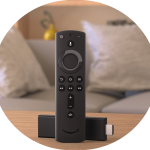 Amazon Firestick: install IPTV Smarters Pro with the Downloader app, then log in. Installation takes about 10 minutes. Firestick installation guide.
 Samsung, LG and Android Smart TV: install the player from your TV’s app store, or use a Firestick if the app is not available. Smart TV installation guide.
 Android phones and TV boxes: XCIPTV or IPTV Smarters Pro from the Play Store. Android installation guide.
 iPhone, iPad and Apple TV: install the player from the App Store. Apple installation guide.
 Windows PC and laptop: download the Windows version of IPTV Smarters Pro. Windows installation guide.
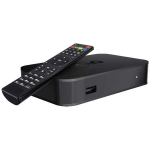 MAG box: no app needed; we activate your MAC address and you enter a portal URL. MAG box installation guide.
After the installation: 5 things to set up first
- Create favourites for the channels you watch every day.
- Check the TV guide (EPG) and correct the time zone on your device if times look wrong.
- Set parental control if children use the same device.
- Test a live channel in the evening, when networks are busiest, to make sure the picture is stable.
- Keep the app updated for bug fixes and better playback.
IPTV installation checklist
- Your device is connected to the internet, preferably with a cable.
- You have your username, password and server URL, or your MAG portal URL.
- The player app is installed from the official store or source.
- The login details are typed exactly as you received them.
- Your internet speed is at least 10–15 Mbps per HD stream. See our IPTV internet speed guide.
If everything on this checklist is ready, the installation itself is quick. Most customers are watching within ten minutes of receiving their login details. If something does not work, go through the common problems below first: in most cases the cause is a small typing mistake in the username, password or server URL, or a weak Wi-Fi signal near the TV. Still stuck after that? Send us a message with your device name and a photo of the screen, and we will guide you through the rest of the installation step by step.
Common problems when you install IPTV
“Invalid username or password”
Check for extra spaces before or after your username and password, make sure the server URL is copied exactly as we sent it, and check that your subscription is still active.
Channels are buffering or freezing
Restart your device, move closer to your router or use a wired connection, and clear the app cache. Each guide has a troubleshooting section with the exact steps for that device.
The app shows an error or won’t load the list
Update the player app to its latest version from the store. An old version can fail to load the channel list.
The picture is slow on Wi-Fi
Run our IPTV speed test on the device you watch on. If the result is low, use a network cable or move closer to the router.
Nothing works after a change
Turn off the device and the router for 30 seconds, turn them back on, then open the app again.
It worked before, now it freezes
Clear the app cache. On Android and Firestick: Settings → Apps → your player app → Clear cache.
It works on one device but not on another
Your plan sets how many devices can watch at the same time. If your plan covers one device, close the app on the other device first, or choose a plan with more devices.
Still stuck?
Send us your device model and a photo of the error on WhatsApp, and we will help you finish the setup.
Installation FAQ
Which app should I use?
Follow the app named in your device’s guide: IPTV Smarters Pro, Smarters Player Lite, XCIPTV or the MAG portal. Many other IPTV players also work, and the login steps are similar.
Can I install IPTVGG on more than one device?
It depends on your plan. Plans are available for 1, 2, 3 or 4 devices watching at the same time. Compare them on the plans page.
How long does an IPTV installation take?
On most devices, 5 to 10 minutes: installing the app takes a few minutes, and logging in and loading the channels takes a few more. On a MAG box, we first need your MAC address to activate the box.
Do I need technical skills for the installation?
No. Each guide shows every step with simple instructions. If you get stuck, send us a photo of the screen and our team will help you finish the installation.
Can I move my subscription to a new device later?
Yes. Install the app on the new device and log in with the same details. For a MAG box, send us the new MAC address first.
How fast does my internet need to be?
About 10–15 Mbps per HD stream and about 25 Mbps per 4K stream. Add these numbers up if several screens watch at the same time, and use a cable where you can. Check your line with our IPTV speed test.
Do I need to buy a box?
No, if you already have a Smart TV, Firestick, phone, tablet or PC. Find your device in the guide table above.
Can I try IPTVGG before paying?
Yes. The 24-hour free trial needs no card, so you can install the app and test the picture on your own device first.
Where can I find more answers?
Our IPTV FAQ covers activation, renewals and refunds. If you are still stuck, contact our support team.