
XCIPTV EPG Not Working: 9 Fixes for an Empty or Wrong TV Guide
If you find XCIPTV EPG not working, the cause is usually one of four things: the guide has not finished downloading, the clock or time zone on your device is wrong, the stored app data is damaged, or your provider’s server sent no guide data. This article shows every fix in order, from the quickest to the slowest. New to the TV guide in general? Start with our IPTV channel guide explainer.
Key takeaways
- XCIPTV EPG not working can be a server problem. The guide data comes from your provider, and the app only downloads and shows it.
- For an empty guide, refresh first: open Settings, then Update Contents, then Update All.
- For wrong times, check the date, time and time zone on the device. Then adjust the EPG time offset, which the app calls EPG Timeshift.
- Clear the cache before you clear storage. Clearing storage deletes your saved login.
- If you see XCIPTV EPG not working on a few channels only, contact your provider.
Where does the XCIPTV TV guide come from?
EPG means electronic programme guide. It is the TV guide that shows what is on now and what comes next. XCIPTV is only a media player. Its official Google Play listing says the app does not supply or include any content, and that it supports EPG for Xtream Codes compatible API, EZHometech and M3U URL logins.
So the guide arrives from the same server as your channels. The app can fix problems with downloading, timing and stored data. It cannot create guide data that the server does not send.
How the app updates the guide
The developer’s documentation on content updates in XCIPTV describes two update types. A full update of TV, VOD, Series and TV Guide runs when you log in to a new account, switch account, or when the last update is more than 24 hours old.
A background update refreshes only the guide, when the last EPG update is older than 12 hours. The documentation places the switch for background updates under Settings, Other Settings, Background Service Update Contents. Menu names can differ in newer versions or branded builds.
If your guide is missing after loading a single long link, that is expected: the format carries no schedule. Our M3U playlist guide explains why, and Xtream Codes is the route that brings the guide with it.
Why is XCIPTV EPG not working? Symptoms and causes
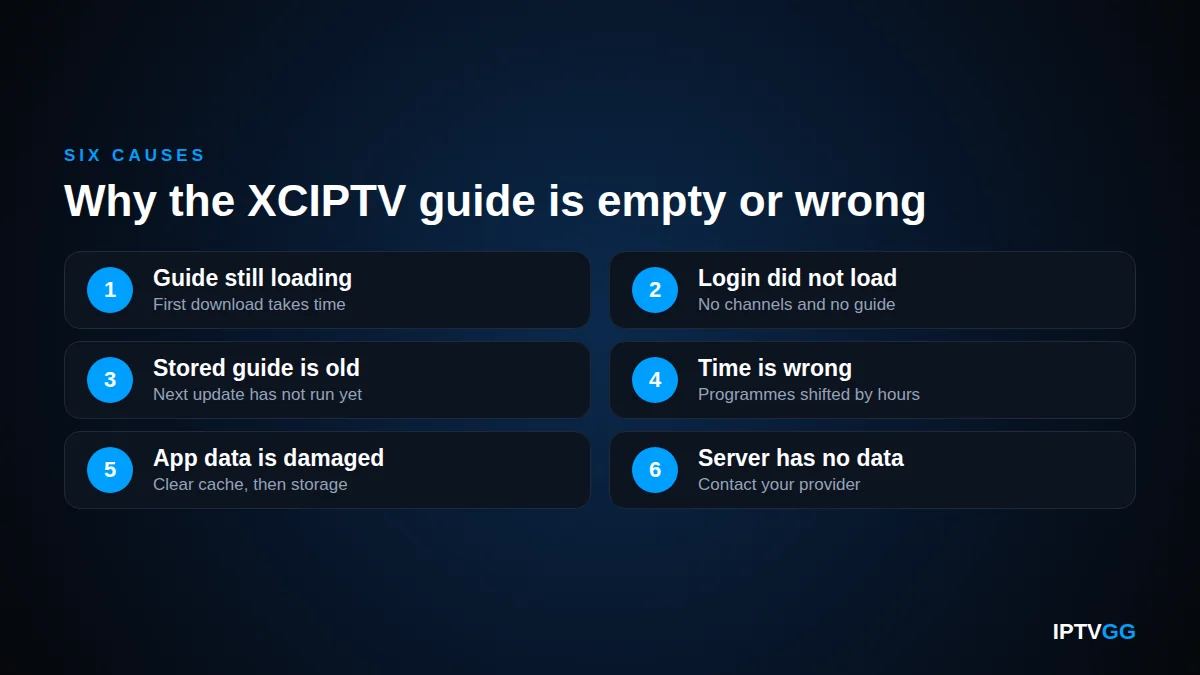
Almost every case of XCIPTV EPG not working falls into one of six groups:
- The guide is still loading. The first download takes time.
- The login did not load. You see no channels and no guide.
- The stored guide is old. The next update has not run yet.
- The time is wrong. Every programme is shifted by one or more hours.
- The app data is damaged. This can happen after an app update.
- The server has no data. Some or all channels come without a guide.
The table below matches each XCIPTV EPG not working symptom to its most likely cause and to the first fix.
| What you see | Most likely cause | First fix |
|---|---|---|
| Guide empty on all channels after login | Guide still downloading, or download failed | Wait, then run Update All |
| No channels and no guide | Login not loaded or subscription expired | Check portal address, username, password |
| Guide on some channels only | Server has no data for the other channels | Report the channel names to the provider |
| Every programme early or late by the same amount | Wrong time zone or wrong EPG time offset | Fix device time, then use EPG Timeshift |
| Guide shows old programmes | Stored guide is old, background update is off | Run Update All, turn on background updates |
| Guide loads half way, or the app freezes | Unstable connection, low memory or storage | Test the connection, close other apps |
| Guide broken after an app update | Damaged stored data | Clear cache, then clear storage |
How to fix XCIPTV EPG not working: 9 steps in order
Follow these steps from the quickest fix to the slowest. Check the guide after each step and stop when it works.
- Check that the login has loaded. Open Live TV. If channels play, the login is fine.
- Close and reopen the app. Restart the device if nothing changes.
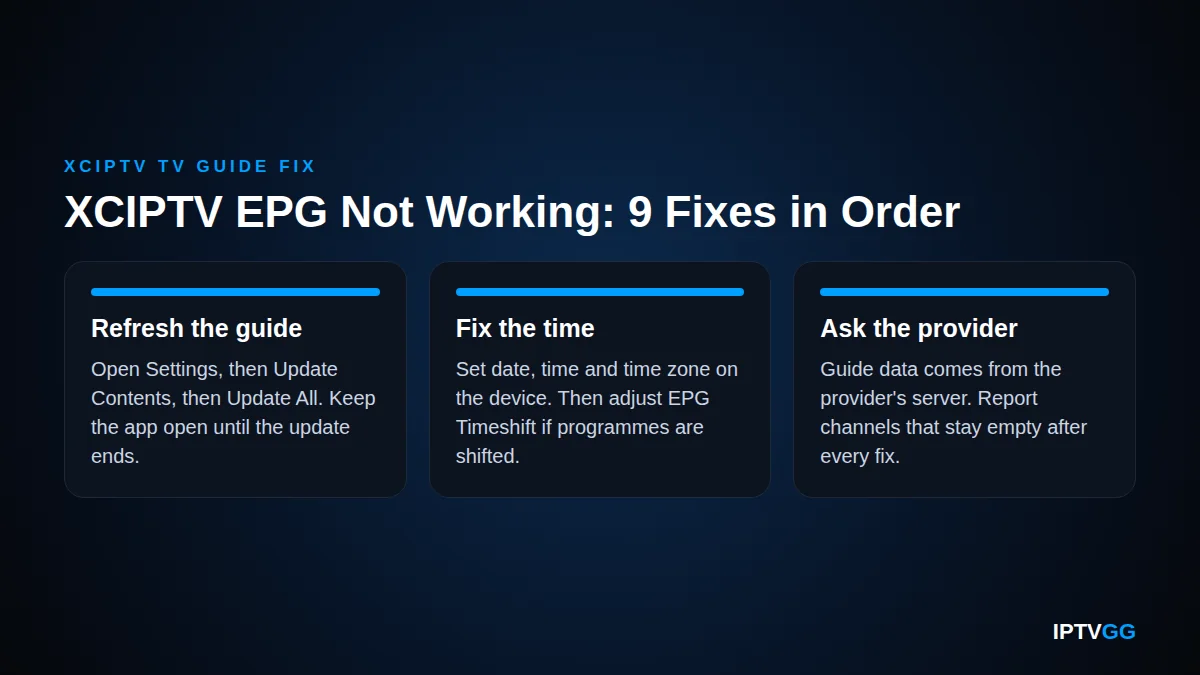
- Refresh the guide. Use Settings, Update Contents, Update All.
- Check date, time and time zone in the device settings.
- Adjust the EPG time offset under EPG Timeshift if programmes are shifted.
- Test your connection. Use a cable or move closer to the router.
- Clear the app cache. If that does not help, clear storage and log in again.
- Update or reinstall the app.
- Contact your provider with the channel names and a photo of the guide.
Steps 1 to 5 take only a few minutes together, so always start there when you notice XCIPTV EPG not working. The sections below explain each step.
How do I refresh the EPG in XCIPTV?
First make sure the playlist has loaded, because XCIPTV EPG not working is sometimes a login problem. Open Live TV and play two or three channels. If the list is empty, check the portal address, username and password. Our XCIPTV setup guide for Android shows the login step, and the IPTV portal URL guide explains the address format.
If channels play but the XCIPTV TV guide is empty, force a new download. The developer’s page on updating content from Settings gives this path:
- Open the app and go to Settings.
- Select Update Contents.
- Select Update All.
- Keep the app open until the update ends, then open the TV Guide again.

Do not switch apps while the update runs. Then look under Settings, Other Settings for Background Service Update Contents and turn it on. If the guide often shows old programmes, check this switch first.
Why does the XCIPTV TV guide show the wrong time?
Sometimes every programme is early or late by the same amount. Then the guide data is fine, but the app converts it to the wrong local time. This form of XCIPTV EPG not working can also appear after the clocks change in spring or autumn.
Check date, time and time zone on the device
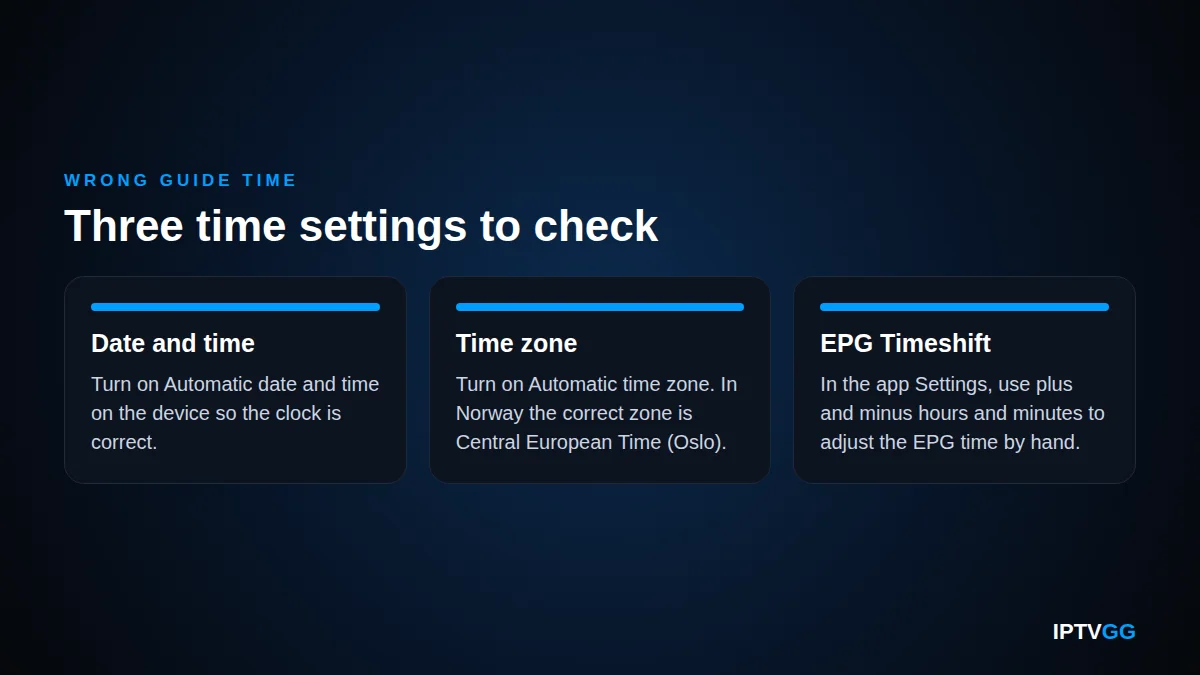
The developer’s EPG Timeshift page says the app adjusts guide times automatically, based on the provider’s panel and the time zone of your device. It also tells you to check that the device has the correct time zone, date and time.
On an Android phone, Google’s help page for date and time says to open the Clock app, tap More, then Settings, then Change date and time. Turn on Automatic date and time and Automatic time zone. On a TV box, open the device settings and look for the date and time section. In Norway the correct zone is Central European Time (Oslo).
Use EPG Timeshift, the EPG time offset setting
If the device clock is right and you still have XCIPTV EPG not working at the correct time, adjust it by hand. Open Settings and then EPG Timeshift. The documentation says you can use plus and minus hours and minutes to adjust the EPG time manually.
Compare one programme you know with its real start time. If the guide shows it one hour too late, move the EPG time offset back by one hour. Then open the TV Guide again.
How to clear the cache, update or reinstall the app
Stored data can become damaged. Then you get XCIPTV EPG not working even after a refresh. Work in this order so that you lose as little as possible.
Clear the cache first, storage second
Open the device settings, go to the apps list, choose XCIPTV and open its storage section. Google’s Android help on clearing app data explains the two buttons. Clear cache deletes temporary data. Clear storage permanently deletes all app data. Menu names vary by device.
Try Clear cache first and open the app again. Use Clear storage only if that fails. After it you must log in again, and the app downloads channels and guide from zero. Favourites saved in the app can be lost too.
Update or reinstall XCIPTV
An old app version is another possible cause of XCIPTV EPG not working. Google Play Help gives the steps: open the Play Store, tap your profile icon, tap Manage apps & device and look under Updates available. The developer’s documentation also describes an in-app update check under Settings, App, Check Update.
Reinstalling is the slowest fix. Uninstall the app, install it again from Google Play and log in. If your device has no Play Store, use only the developer’s official site and follow the device maker’s own instructions. For other devices, see our IPTV installation guides.
Can a slow connection or a large channel list break the guide?
Yes, both can cause XCIPTV EPG not working. A big catalogue has tens of thousands of channels, and each channel has its own programme list. The app must download and save all of it. If the connection drops during the update, the guide can end up empty or half filled.
Wi-Fi is the usual weak point. Our guide to IPTV internet speed in Norway recommends an Ethernet cable, or the 5 GHz Wi-Fi band close to the router. It lists about 5 Mbps for an SD stream, 10 to 15 Mbps for HD and 25 Mbps for 4K.
Older boxes with little memory or free storage can need a long time to process a large guide. Leave the app open, close other apps and free some storage. You can also ask your provider whether your line can be limited to the channel groups you watch.
When should you contact your provider?
Contact the provider when the app side is clean but you still see XCIPTV EPG not working. These signs point to the server:
- The guide is missing on the same channels on every device you use.
- The guide worked yesterday and stopped on all channels at once.
- Only one channel or one country group has no programme data.
Send the device model, the app version, the channel names without a guide and a photo of the screen. Say which steps you already tried.
IPTVGG customers with XCIPTV EPG not working can reach support on WhatsApp at +212 601 675807 or by email at support@iptvgg.com. You can also use the contact page or read the IPTV frequently asked questions first.
XCIPTV EPG not working: frequently asked questions
Why is XCIPTV EPG not working after the first login?
The guide downloads together with the channels during the first full update. With a large channel list this takes time, and the guide stays empty until it ends. Keep the app open and wait. If it is still empty, open Settings, select Update Contents and then Update All.
Why is the guide one hour early or late?
This kind of XCIPTV EPG not working is a time zone problem, not missing data. Set the date, time and time zone on the device to automatic and restart the app. If the guide is still shifted, open EPG Timeshift in the app settings and add or remove hours and minutes.
Will clearing the cache delete my XCIPTV login?
No. According to Google’s Android help, Clear cache deletes only temporary data. Clear storage is different: it permanently deletes all app data. After that you must enter the portal address, username and password again. Always try Clear cache first when you see XCIPTV EPG not working.
Is XCIPTV EPG not working on some channels a fault in the app?
Usually not. When most channels show programmes and only some rows are empty, the app is working. The server has no guide data for those channels. No setting in the player can add it. Send the channel names to your provider and ask them to check.
Can I add my own EPG source in XCIPTV?
The store listing and the developer’s documentation describe the guide as part of the provider login. We did not find a documented field for a separate guide address, so do not plan around one. Ask your provider to correct the guide on the server instead.
Test the guide on a fresh line
To learn whether XCIPTV EPG not working is an app problem or a server problem, test another line on the same device. IPTVGG offers a free 24-hour IPTV trial with no card needed, and the trial login arrives on WhatsApp. If you like it, the IPTV subscription plans start from €12.99 for one device and one month.
Tired of fixing someone else EPG?
Test a line where the TV guide is already configured. Login arrives on WhatsApp.