
Want to watch your IPTVGG subscription on your iPhone, iPad or Apple TV? The easiest way is Smarters Player Lite, the official IPTV Smarters app for Apple devices. This guide to IPTV Smarters on iPhone shows you how to download it, log in with your subscription, set up the TV guide (EPG) and fix the most common problems.
Time needed: about 5 minutes
What you need: an iPhone, iPad or Apple TV connected to the internet, and your IPTVGG login details (username, password and server URL sent to you after subscribing).
Quick overview
| Device | App to install | Where to get it |
|---|---|---|
| iPhone | Smarters Player Lite | App Store |
| iPad | Smarters Player Lite | App Store |
| Apple TV | Smarters Player Lite | App Store on Apple TV |
Tip: app availability can change depending on your country. If you can’t find the app, see the “App not found” section below.
How IPTV works on Apple devices
 On iPhone, iPad and Apple TV, IPTV works through a player app from the Apple App Store. Smarters Player Lite is the version of IPTV Smarters made for Apple devices. You install it, log in with the details from your IPTVGG subscription, and it loads your live channels, movies and series. Nothing needs to be installed from outside the App Store, which keeps the setup simple and safe on these devices.
When something does not work, check three things: the device (software version, connection and settings), the app (version and login details) and your subscription (active and within the number of devices in your plan).
Apple devices at a glance
| Apple device | System | Where to get the app | Best for |
|---|---|---|---|
| iPhone | iOS | App Store | Watching anywhere, at home or on the move |
| iPad | iPadOS | App Store | A bigger portable screen |
| Apple TV (HD and 4K) | tvOS | App Store on the Apple TV | Watching on the TV with the Siri Remote |
The same IPTVGG login works on all three. You only need to install the app on each device you want to use.
Before you start
- Check your internet speed. We recommend at least 15 Mbps for HD and 25 Mbps for 4K. On Apple TV, an Ethernet cable is more stable than Wi-Fi.
- Update your device. Go to Settings → General → Software Update.
- Have your login details ready. Don’t have them yet? Start your free trial or see our plans.
Step 1: Download Smarters Player Lite on iPhone or iPad
- Open the App Store.
- Tap the Search tab and type “Smarters Player Lite”. You can also use this direct link: Smarters Player Lite on the App Store.
- Tap Get and confirm with Face ID, Touch ID or your password.
- Open the app and accept the terms.
How to install Smarters Player Lite on Apple TV
- On your Apple TV home screen, open the App Store.
- Go to Search and type “Smarters Player Lite”.
- Select the app and click Get.
- Open the app and follow the login steps below. Typing with the Siri Remote is slow, so you can use the keyboard on your iPhone when the prompt appears.
Step 2: Log in with your IPTVGG subscription
- When the app opens, choose “Login with Xtream Codes API”.
- Fill in the fields:
- Any name: type anything, for example IPTVGG
- Username: from your welcome message
- Password: from your welcome message
- URL: the server URL from your welcome message (copy it exactly, including
http://and the port number if there is one)
- Tap Add User.
- Wait a few seconds while the app loads your Live TV, Movies and Series.
Tip: on iPhone, copy and paste your details from the welcome email instead of typing them. It avoids most login errors.
Step 3: Start watching
- Tap the Live TV icon.
- Choose a channel group (for example, by country or category).
- Tap a channel name to start playing it in the small preview window.
- Double-tap the preview to switch to full screen.
Movies and series work the same way: open Movies or Series, pick a category, then choose a title.
Step 4: Load the TV guide (EPG)
You don’t need to add an EPG link manually. On the home screen, tap Install EPG and wait for it to finish. The program guide will then appear under your channels.
What you can do with Smarters Player Lite on Apple devices
 After logging in you get the main sections of IPTV Smarters:
- Live TV: channels grouped by country or category.
- Movies and Series: on-demand titles you can pause and resume.
- Catch Up: programmes already broadcast, on channels that support it.
- TV guide (EPG): what is on now and next.
- Favourites and search: keep your main channels in one list and find titles quickly.
- Parental control: lock categories with a PIN.
On iPhone and iPad you tap and swipe. On Apple TV you use the touch surface or clickpad of the Siri Remote to move through menus and press to select.
Best iPhone and iPad settings for smooth IPTV
- Turn off Low Data Mode on Wi-Fi. Go to Settings → Wi-Fi, tap the info button next to your network and turn off Low Data Mode.
- Turn off Low Power Mode while watching. In Settings → Battery, switch it off, or charge your device.
- Keep iOS or iPadOS updated. Go to Settings → General → Software Update.
- Watch on mobile data with care. Streaming uses a lot of data. If you watch away from Wi-Fi, check your data plan, and use Wi-Fi whenever you can.
- Free up storage. Check Settings → General → iPhone Storage (or iPad Storage) if the app becomes slow.
Best Apple TV settings for IPTV
- Use Ethernet if your Apple TV has a port. A cable gives the most stable picture. On Wi-Fi, keep the Apple TV close to the router.
- Match the picture to the content. On Apple TV 4K, go to Settings → Video and Audio → Match Content and turn on Match Frame Rate, so live TV and films play with smoother motion.
- Keep tvOS updated. Go to Settings → System → Software Updates.
- Turn on automatic app updates. In Settings → Apps, turn on Automatically Update Apps so the player always has the latest fixes.
For connection quality in general, see how much internet speed IPTV needs.
Watch from your iPhone on a TV with AirPlay
If you have an Apple TV or a TV that supports AirPlay, you can show what plays on your iPhone or iPad on the big screen. Connect both to the same Wi-Fi network, open Control Center on your iPhone and choose Screen Mirroring, then select your TV. For the best quality on a TV, installing the app directly on the Apple TV is still the better option.
How to update or reinstall the app
Updates come from the App Store. On iPhone and iPad, open the App Store, tap your profile picture and update the app from the list. On Apple TV, updates install automatically if Automatically Update Apps is on. To reinstall on iPhone or iPad, press and hold the app icon, choose Remove App, then download it again from the App Store and log in with your IPTVGG details. You can find more about the app on the official site at iptvsmarters.com and about Apple TV settings on Apple Support.
Apple devices compared with other IPTV devices
| Device | App used | Setup time | Guide |
|---|---|---|---|
| iPhone, iPad, Apple TV | Smarters Player Lite | About 5 minutes | This guide |
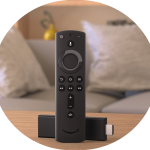 Amazon Firestick | IPTV Smarters Pro (via Downloader) | About 10 minutes | Firestick guide |
 Windows PC | IPTV Smarters Pro | About 5–10 minutes | Windows guide |
 Android phone or box | XCIPTV Player | About 5 minutes | Android guide |
Using several Apple devices on one subscription
You can install the app on your iPhone, iPad and Apple TV and log in with the same details. How many can watch at the same time depends on your plan: IPTVGG plans are available for 1, 2, 3 or 4 devices. If one device shows an error while another is playing, you have probably reached your plan limit. Compare the options on our plans page.
Checklist before contacting support
- Your device is online and other video apps play normally.
- Your IPTVGG subscription is active and you use the latest login details.
- Username, password and URL are typed exactly, with no extra spaces. iPhone keyboards often add a capital letter at the start, so check the first character.
- You have restarted the device and your router.
- The app and the system software are up to date.
Still stuck? Contact our support team with your device model, the app version and the exact error message. You can also see all IPTV installation guides or the IPTV FAQ.
Extra parental controls with Screen Time
Besides the PIN lock inside the app, Apple devices have their own family controls. On iPhone and iPad, go to Settings → Screen Time to set time limits for apps or to require a passcode. On Apple TV, go to Settings → General → Restrictions to limit apps and content. This is useful when children use the same device.
Private listening with AirPods on Apple TV
If you want to watch late at night without disturbing anyone, connect AirPods or other Bluetooth headphones to your Apple TV. Go to Settings → Remotes and Devices → Bluetooth and select your headphones. The sound from the IPTV app then plays only in your headphones.
Restarting an Apple TV the right way
Many small problems disappear after a proper restart. On Apple TV, go to Settings → System → Restart. If the Apple TV does not respond, unplug the power cable for about 30 seconds and plug it back in. On iPhone or iPad, close the app by swiping it away in the app switcher, then open it again.
Finding channels faster
Channels are organised in groups, usually by country and then by type such as news, kids or movies. Open the group you watch most, add your main channels to Favourites and you will not need to scroll through every category again. For live TV, open the channel a few minutes early and keep a second channel from the same group in mind in case the first one is busy. If a channel moves after a list update, search for it by name.
Watching on your iPhone or iPad while travelling
Your subscription is not tied to your home, so you can watch on your iPhone or iPad when you travel. Hotel, train and airport Wi-Fi networks are often slow or shared by many people, so the picture may drop in quality or pause. Choose channels in standard quality on weak networks, download nothing else at the same time, and connect to a stronger Wi-Fi network when you can.
Saving battery while you watch
Video uses a lot of battery on a phone or tablet. Lower the screen brightness a little, close other apps in the background, and keep the device on charge for long films. Using Wi-Fi instead of mobile data also uses less battery. If your iPhone gets warm, take it out of its case while charging and watching, because iOS may slow the device down when it is hot.
What to do when one channel does not play
If most channels work but one does not, the problem is usually that single stream, not your device or your login. First wait a few seconds and try again, because live channels sometimes restart. Then try another channel in the same group. If that one plays, the first channel may be temporarily offline, and it normally returns without you doing anything. If no channel plays at all, check your internet connection and your login details instead.
How catch-up and the TV guide work together
On channels that offer catch-up, the TV guide is also your way back in time. Open the guide, move to a programme that has already finished and select it to play it from the start. How many days you can go back depends on the channel. If a programme cannot be selected, that channel does not offer catch-up for it. Keeping the guide updated in the settings makes sure you see the right schedule.
Troubleshooting IPTV Smarters on iPhone: common problems and fixes
“App not found” in the App Store
Make sure you search for “Smarters Player Lite” (not “IPTV Smarters Pro”, which is the name on other devices). If it’s still not available in your country, contact us and we’ll recommend another player.
“Invalid username or password” / authorization failed
- Check for extra spaces before or after your username and password.
- Make sure the URL is copied exactly as we sent it.
- Check that your subscription is still active.
Channels are buffering or freezing
- Restart your router and your device.
- Move closer to your Wi-Fi router, or use Ethernet on Apple TV.
- In the app settings, try changing the player option.
- Pause other devices that are streaming or downloading on the same network.
The EPG is empty
- Tap Install EPG again and wait until it finishes.
- Log out and log back in, then reload the EPG.
Still stuck? Contact our support team.
Frequently asked questions
Is Smarters Player Lite free?
Yes, the app is free to download from the App Store. It is only a player and does not include any channels; you need an IPTV subscription to watch content.
What’s the difference between Smarters Player Lite and IPTV Smarters Pro?
They are made by the same developer. Smarters Player Lite is the version for Apple devices; IPTV Smarters Pro is the name used on Android, Smart TVs and Windows.
Can I use the same subscription on my iPhone and my TV?
It depends on your plan. Each plan includes a set number of connections. Check the details on our plans page.
Does it work on iPad and Apple TV?
Yes. The same login details work on iPhone, iPad and Apple TV.
Can I watch IPTV on my iPhone using mobile data?
Yes, the app works on mobile data as well as Wi-Fi. Streaming video uses a lot of data, so check your mobile plan, and switch to Wi-Fi when you can.
Can I control the Apple TV app with my iPhone?
Yes. The Apple TV Remote in Control Center on your iPhone works like the Siri Remote, and its keyboard is handy for typing the login details on Apple TV.
Why does iOS capitalise my username?
The iPhone keyboard capitalises the first letter automatically. Login details are case sensitive, so correct the first letter if needed, or paste the details from the email we sent you.
Does the app work on older iPhones?
It depends on the iOS version the app requires in the App Store. If your iPhone cannot install it, the App Store shows a message. In that case, use another device, such as an Apple TV, a Firestick or a Smart TV.
Can I use one Apple ID for the app on all my Apple devices?
Yes. Your Apple ID is only used to download the app from the App Store. Your IPTVGG login is separate, so you enter it in the app on each device.
Ready to start watching?
Download Smarters Player Lite, log in with your details, and enjoy your channels on your Apple devices in minutes.
See IPTVGG plans · Get a free trial