
How to Use XCIPTV: Home Screen, TV Guide, Favourites and Settings (2026)
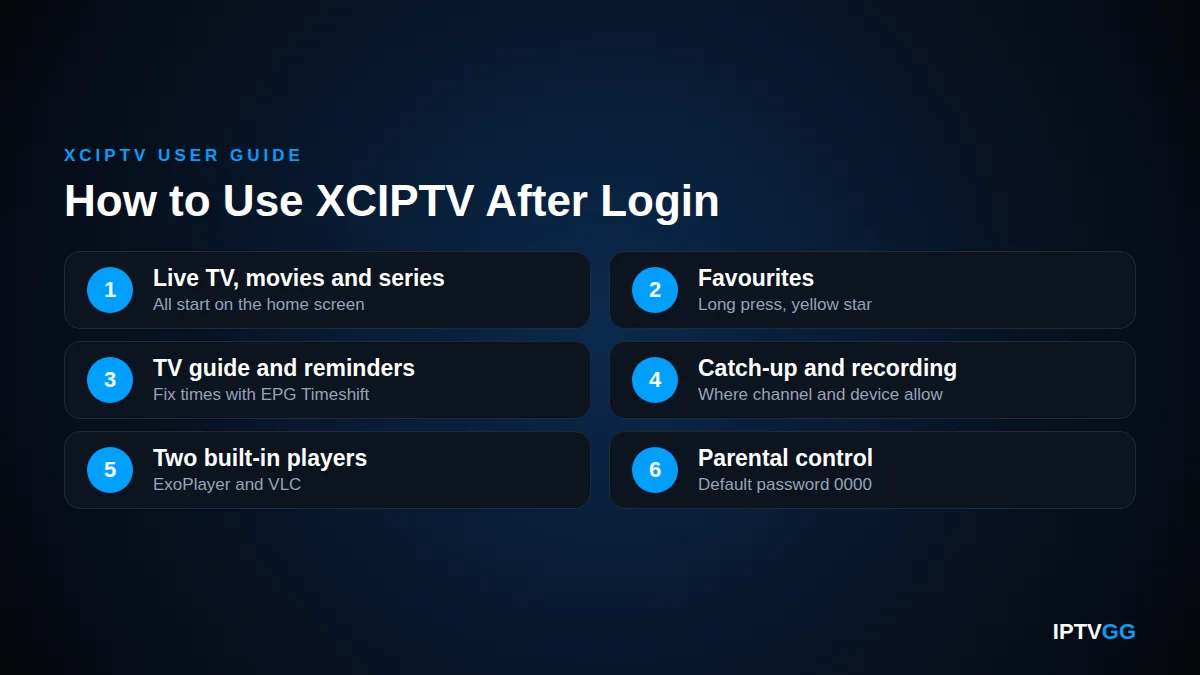
If you are wondering how to use XCIPTV once you are logged in, the short answer is simple. The home screen opens live TV, movies, series and the TV guide. A long press saves favourites. The Settings icon holds the player, parental and update options. This guide shows where each feature is on Android TV, Firestick and phones.
Key takeaways
- The home screen is the hub for live TV, movies, series, the TV guide, catch-up and settings.
- Long press a channel name or channel icon to save a favourite. A yellow star confirms it.
- The app has two built-in players, ExoPlayer and VLC. Switch player first when a stream stutters.
- Subtitles are behind the CC icon. Press OK during playback to show the controls.
- Catch-up and recording exist, but they only work where the channel and the device support them.
This guide on how to use XCIPTV is for people who already have the app installed. If you do not, follow our XCIPTV setup guide for Android first. Fire TV owners should also read our IPTV on Firestick guide. The menu names below come from the XCIPTV Player listing on Google Play and the official OTTRUN user guide. Labels can differ a little between app versions.
What is on the XCIPTV home screen?
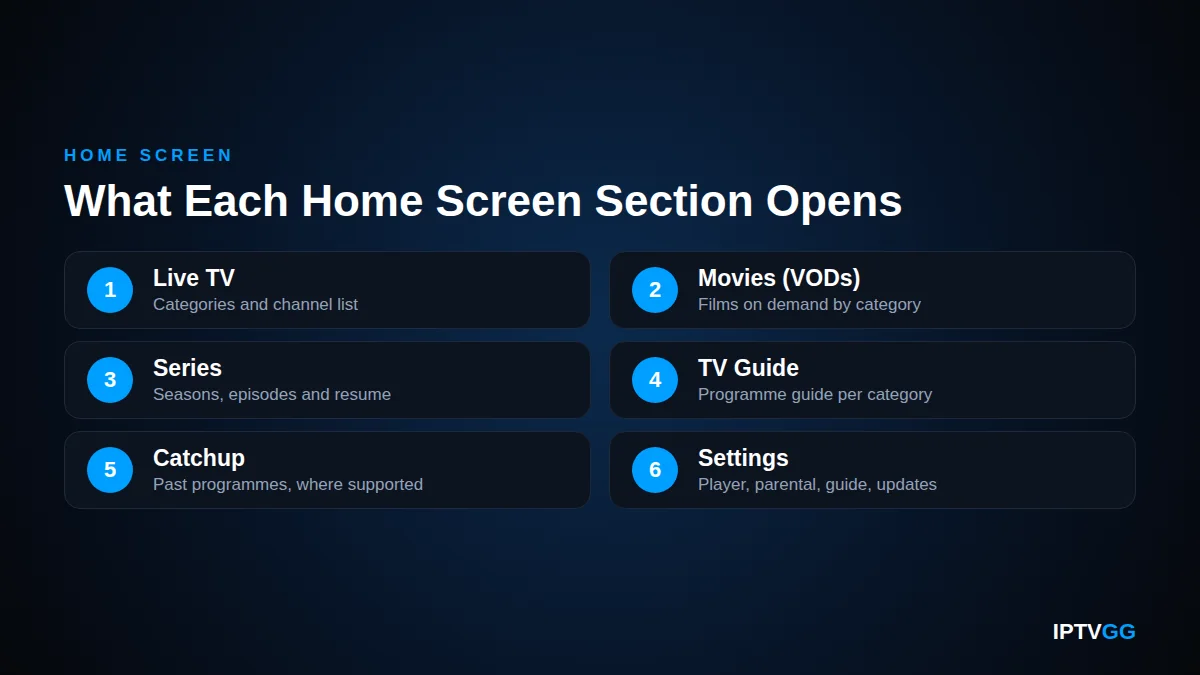
After login, the app downloads your channels, movies, series and guide data. Then it shows the home screen. This screen is the first step in learning how to use XCIPTV.
| Section | What it opens |
|---|---|
| Live TV | Channel categories and the channel list |
| Movies (called VODs in the app’s documentation) | Films on demand, sorted by category |
| Series | Shows with seasons, episodes and resume |
| TV Guide | The programme guide (EPG) for a category |
| Catchup | Past programmes, where the channel supports it |
| Settings | Player, parental, guide and update options |
You will also find Multi-Screen, which shows up to 4 channels at once if your plan has enough connections, and Account, which holds your saved logins. The app refreshes its content when the last update is more than 24 hours old.
If your box uses a MAG portal instead of an app, the setup is different: see our IPTV portal URL guide.
XCIPTV accepts both login types. If you were sent a username and password, our Xtream Codes guide explains each field; if you were sent one long link, see the M3U playlist guide.
How to use XCIPTV to find channels fast
A large channel list is only useful when you can reach a channel quickly. Three tools help: categories, search and favourites.
Browse by category or search by name
Open Live TV, choose a category, then choose a channel. Movies and series work the same way. Ask support which groups to expect, or see the IPTVGG plans.
The app also has a search for live TV, movies and series. Open the section you want and use its search option. With a remote, type only three or four letters.
How to use XCIPTV favourites
Highlight a channel and long press on the channel name or the channel icon. A yellow star appears. Movies and series can be saved in the same way. When the favourites list is not empty, it becomes the default category in live TV. Recent versions also support several favourites profiles.
How does the TV guide (EPG) work in XCIPTV?
The TV Guide page loads all programmes for the category you pick. In live TV, moving up and down the channel list shows the guide for the highlighted channel. Not every channel carries programme data. Three guide tools are worth knowing when you learn how to use XCIPTV:
- Set a reminder: highlight a programme title, long press on it and choose the reminder in the popup.
- Fix wrong times: open Settings → EPG Timeshift and use plus and minus for hours and minutes. Check the time zone and date of your device first.
- Refresh the guide: the app updates guide data in the background when it is more than 12 hours old. To force it, open Settings → Update Contents → Update All.
If the guide stays empty after a refresh, read our separate guide on XCIPTV EPG not working.
Can you use catch-up and recording in XCIPTV?
Yes, with limits. The official store listing names both “Catchup with EPG” and scheduled recording to internal or external storage. Whether they work depends on the channel, your device and your app version.
How to use XCIPTV catch-up
Open the Catchup section and pick a channel and a programme. You can filter the list by date. Catch-up only appears for channels where the service provides it. An empty list is not a fault in the app.
How to use XCIPTV recording
- Record what you are watching: make sure VLC Player is the selected player. Then use the record button to start and stop.
- Schedule a recording: open the Record icon. The first time, choose a storage location. Select Add, then set the date, time and duration.
- Schedule from the guide: highlight a programme title, long press on it and choose Schedule Recording.
- Find your files: My Recording lists finished recordings. My Schedule lists future or failed ones.
Recording needs free storage, and a Fire TV Stick has little internal space. Some app builds also have recording switched off.
How to change the video player, subtitles and audio
A big part of how to use XCIPTV without stutter is the player choice. XCIPTV Player comes with two built-in players, ExoPlayer and VLC. Open the settings and look for the player option to switch between them. Then restart the app and test the same channel again.
We could not confirm a separate hardware or software decoder switch in the official user guide, so treat the player choice as your decoder choice. If both players buffer, check the connection. See our guide to internet speed for IPTV and the 4K live IPTV page.
How to use XCIPTV subtitles and audio tracks
- During playback, tap the screen or press the OK or centre button on the remote. The playback controls appear.
- Select the CC icon.
- Choose Disable to turn subtitles off, or pick a language track.
The steps are the same in both players. The app also has an audio track selector, so look for an audio or track option in the playback controls. For movies and series you can load an external subtitle file with the External Subtitle icon.

XCIPTV settings: what you want to do and where to find it
Most XCIPTV settings are reached from the Settings icon on the home screen. This table sums up how to use XCIPTV day to day.
| What you want to do | Where to find it |
|---|---|
| Turn subtitles on or off | Playback controls → CC icon |
| Correct guide times | Settings → EPG Timeshift |
| Refresh channels and guide | Settings → Update Contents → Update All |
| Lock categories | Settings → Parental |
| Change the parental password | Settings → Parental Password → Reset Password |
| Switch to another login | Account → select the account → Login |
| Back up favourites | Settings → Backup & Restore |
| Check for an app update | Settings → App → Check Update |
| Open the last channel at start | Settings → Other Settings → Load Last Live TV Channel Automatically |
| Pause and rewind in live TV | Settings → Other Settings → Live TV Media Control |
How to use XCIPTV parental control
Open Settings → Parental. The default password is 0000. Highlight a category and long press on it to lock it. A lock icon appears. Then press the on/off button and check that the red text PARENTAL CONTROL ON is showing. You can lock live TV, movie and series categories.
Change the default password straight away and write the new one down. A forgotten password can only be reset with a one-time password from support.
How to use XCIPTV with several logins
The app can store more than one account. Open Account on the home screen, select the one you want and choose Login. The backup option saves your favourites, parental settings, resume points and account list under a PIN that you choose. The PIN cannot be reset, so keep it safe.
How to use XCIPTV with a remote on Android TV and Firestick
On a TV, how to use XCIPTV comes down to a few buttons.
- Direction buttons (the navigation ring on a Fire TV remote) move the highlight. In live TV, up and down also show the guide for each channel.
- OK or centre button (Select on a Fire TV remote) opens what is highlighted. During playback it shows the controls.
- Hold the OK button for a long press. That is how you save favourites, lock categories and open the programme popup.
- Back takes you one step back, for example from the stream to the channel list.
The app also has a sleep timer. After about three hours of live TV it can ask you to confirm that you are still watching. You can also use a phone as a remote with the developer’s OTR Remote app. Open Settings → Remote Control to see the pairing code.

Your first 10 minutes: a quick checklist
The fastest way to learn how to use XCIPTV is to set it up properly once.
- Wait for the first content update. Then play one live channel.
- Long press five to ten channels to build your favourites.
- Open the TV Guide and check that the times match your clock.
- Play one movie and press OK to find the CC icon.
- If the picture stutters, switch to the other built-in player.
- Change the default parental password if children use the TV.
- Turn on Load Last Live TV Channel Automatically if you want it.
- Create a backup of your favourites.
Keep XCIPTV Player up to date
Part of knowing how to use XCIPTV well is keeping it current. Inside the app, open Settings → App → Check Update. On a phone or tablet you can also update through Google Play: tap your profile icon, then Manage apps & device, and look under “Updates available”. Google explains this in its Google Play help article on updating apps. Do not download the app from unofficial sites.
Recent versions also have a Clear Cache option in the XCIPTV settings. Try it when the menus feel slow. More device guides are on our installation guides page.
How to use XCIPTV: frequently asked questions
Does XCIPTV come with channels?
No. The store listing states that XCIPTV Player does not supply or include any media or content. It is only a player. You need login details from your IPTV service. After you sign in, the app loads the channels, movies and series that belong to your subscription.
How to use XCIPTV with a Firestick remote?
You do not need a mouse or a special remote. Move with the navigation ring and open items with the Select button in the middle. Hold Select for a long press, for example to save a favourite. Press Select during playback to show the controls.
Why is there no record button in XCIPTV?
Recording while you watch only works when VLC Player is the selected player, so check the player setting first. Recording also needs a storage location with free space. Some app builds have recording switched off. In that case the Record icon does not appear.
How to use XCIPTV on more than one device?
Install the app on each device and sign in with the same details. How many devices can play at the same time depends on your subscription. IPTVGG plans cover 1 to 4 devices. Use Backup & Restore to copy favourites: back up on the first device, then restore on the second.
What is the default parental password in XCIPTV?
The developer’s user guide gives 0000 as the default password for parental control. You enter it under Settings → Parental. Change it under Settings → Parental Password → Reset Password before you lock any categories. Otherwise anyone who knows the default can open them.
Ready to try it on your own TV?
Now you know how to use XCIPTV for daily viewing and where the XCIPTV settings live. IPTVGG offers live channels and movies and series on demand. Ask for a free 24-hour IPTV trial. No card is needed and the trial login arrives on WhatsApp.
When you are ready, choose an IPTVGG plan for 1 to 4 devices, from €12.99 for one month. If a step does not match your screen, contact IPTVGG support or check the IPTV FAQ.
Want to try XCIPTV with a working line?
Get trial credentials on WhatsApp and see how the app behaves on your own device.