
IPTV Speed Test: Check Your Connection in 10 Seconds
This IPTV speed test measures how fast your device can pull data from our servers, then tells you in plain language what that speed can actually stream: SD, HD, or 4K, and how many screens at once. It runs in the browser, takes about ten seconds, and needs nothing installed.
IPTV speed test
Measure your download speed and see what it can stream
Takes about 10 seconds and downloads roughly 10 to 60 MB.
This test downloads sample files from our own server, so it shows the speed between your device and us rather than a general internet benchmark. Results above roughly 150 Mbit/s are limited by the test itself, not by your line. We also keep an anonymous record of the speed band each test lands in, so we can publish aggregate figures: no IP address and nothing identifying is stored. For an exact figure use Nkom nettfart.no or Speedtest.
What your IPTV speed test result means
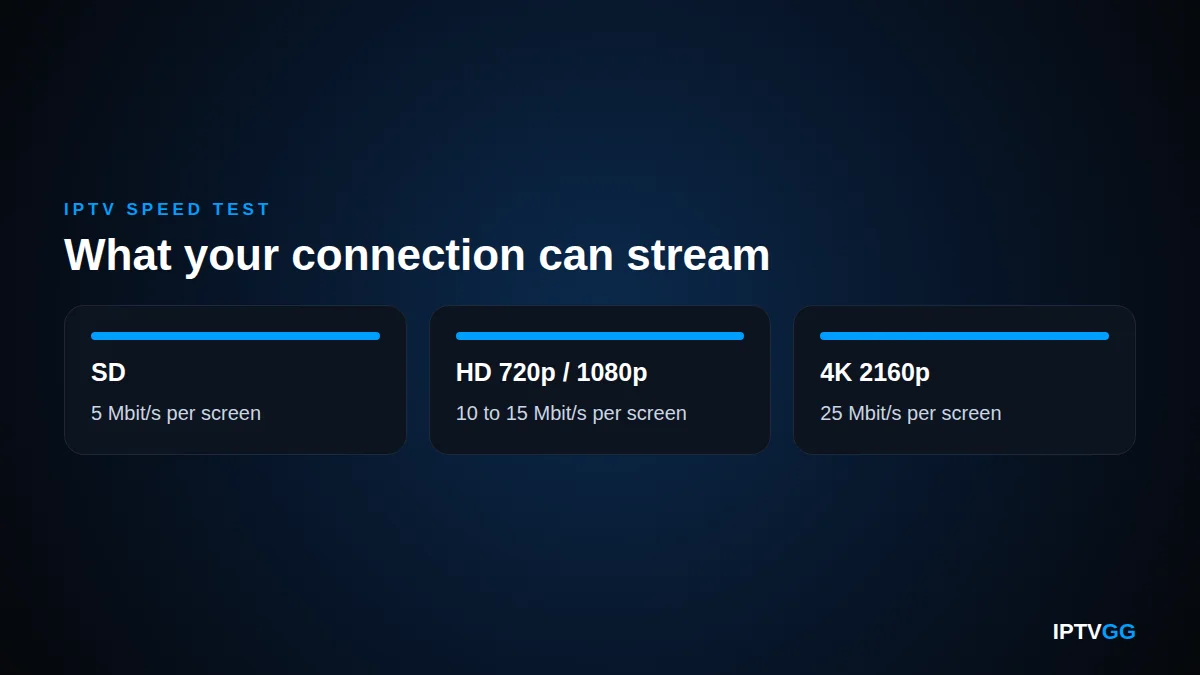
Streaming needs a steady connection more than a fast one. These are the figures we work with per screen, and they are the same numbers behind the IPTV speed test result above.
| Quality | Speed per stream | Roughly per hour |
|---|---|---|
| SD | 5 Mbit/s | ~1 GB |
| HD (720p / 1080p) | 10 to 15 Mbit/s | ~3 GB |
| 4K (2160p) | 25 Mbit/s | ~7 GB |
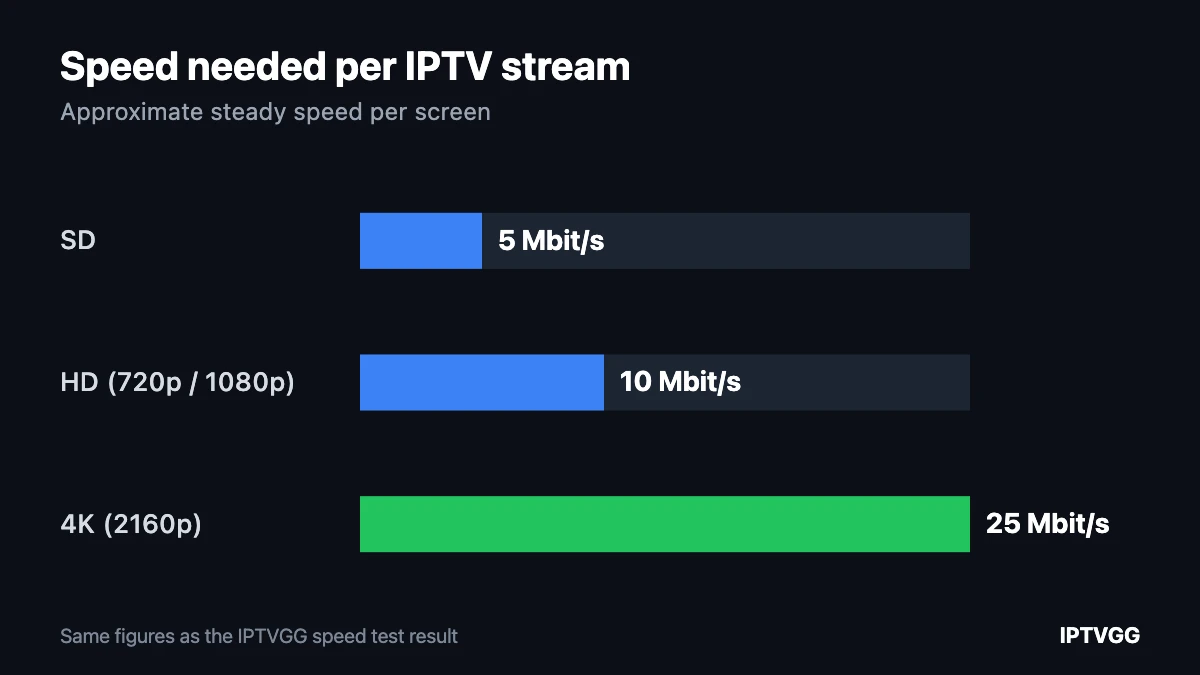
The stream counts in the result use 5 Mbit/s for SD, 10 for HD and 25 for 4K, and leave about 20 percent of your speed free. That headroom is deliberate: a line running at 100 percent has nothing left for a phone, a game console, or a cloud backup that starts in the middle of a match.
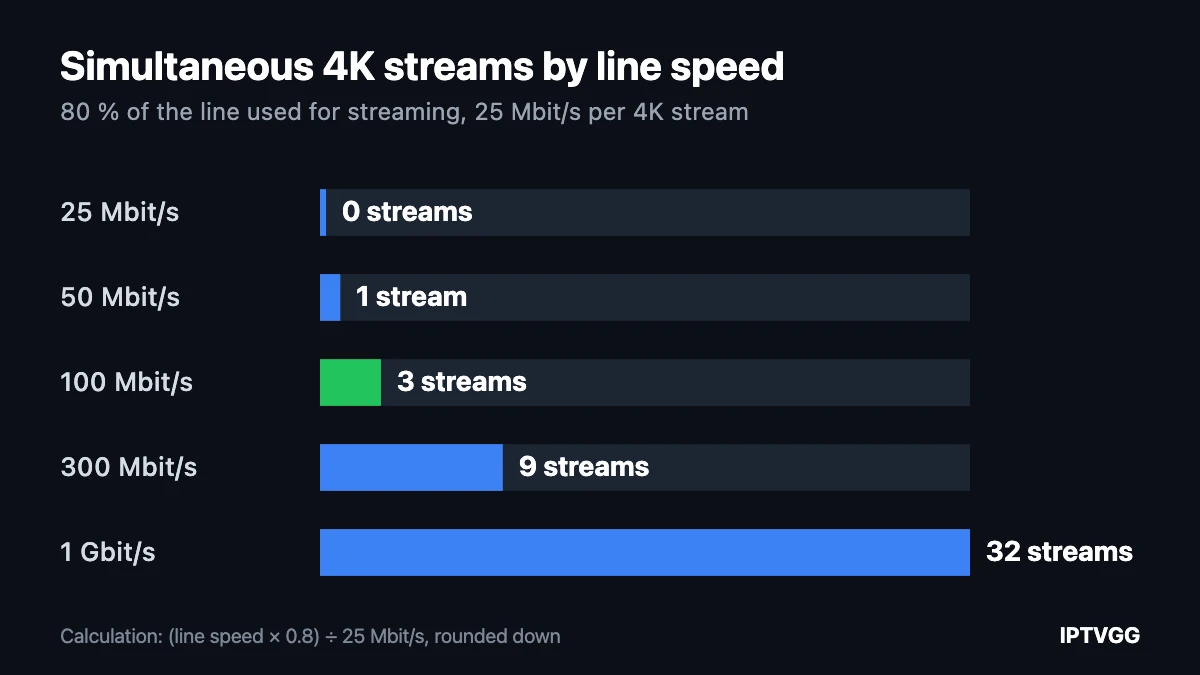
The chart below turns those numbers into simultaneous 4K streams for common line speeds. If your result sits between two rows, count on the lower one: steady streaming speed matters more than the peak figure.
Live in Norway or Serbia? We collected the local broadband figures for 4K streaming in two short guides: 4K-strømming i Norge: dette sier tallene (Norwegian) and 4K striming u Srbiji: koliko brz internet treba? (Serbian).
Why this result can differ from Speedtest
A general speed test picks the fastest server near you. This IPTV speed test downloads from the servers that actually serve this site, so it reflects the whole path including any congestion along the way. A lower number here is not necessarily a problem, and a high number on Speedtest does not guarantee a smooth stream.
The number that matters for IPTV is not the peak. A line that tests at 200 Mbit/s but drops to 5 for a few seconds every minute will buffer more than a steady 30. Run the IPTV speed test two or three times at different hours, especially around 20:00 when everyone in the building is streaming.
If the result is lower than your plan promises
- Use a cable. Running an Ethernet cable from the router to the box or TV fixes more buffering than any other single change.
- Test on the device that buffers. A phone next to the router tells you nothing about a Firestick two rooms away.
- Check what else is running. Downloads, backups and other streams share the same line.
- Restart the router and test again before you call anyone.
- Test at prime time. Many lines are fine at 10:00 and congested at 21:00.
Our IPTV internet speed guide goes through each of these in detail, including how to work out what a household with several TVs needs.
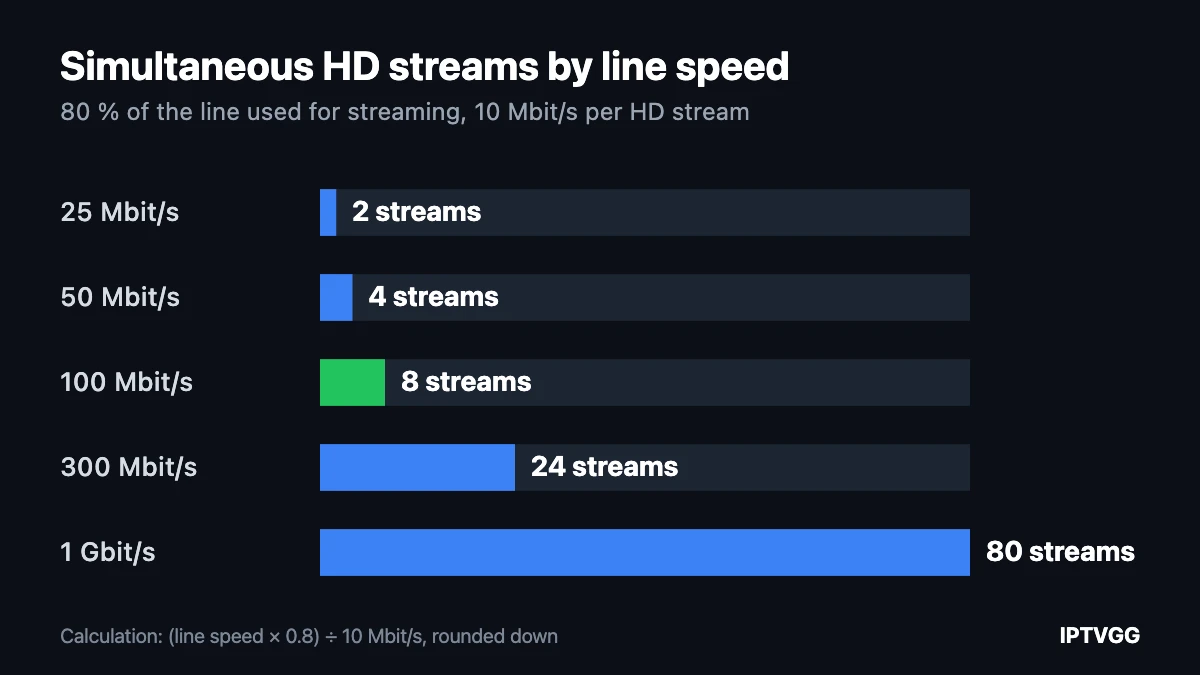
Planning for several TVs? Here is the same calculation for HD, which is what most live channels stream in. Use it as a quick guide to the internet speed for IPTV your household needs at peak time, then check it against your own result above.
Frequently asked questions about the IPTV speed test
How much data does this IPTV speed test use?
Between roughly 10 and 60 MB depending on how fast your connection is, because the test keeps downloading for a fixed ten seconds. On a mobile plan with a small data allowance, run it on Wi-Fi instead.
What speed do I need for IPTV?
About 5 Mbit/s for SD, 10 to 15 for HD and 25 for 4K, per screen. Add them together for the screens you use at the same time, then leave about 20 percent spare. A household with one 4K TV and one HD TV wants roughly 50 Mbit/s of steady speed.
My speed is fine but IPTV still buffers. Why?
Almost always Wi-Fi rather than the line. Distance, walls and interference cut the speed that actually reaches the device. Other causes are an overloaded router, too many devices at once, or the wrong video quality set in the app. See our portal and setup guide if the problem started after changing a setting.
Does a faster plan give a better picture?
Only up to a point. Once you are past the speed a 4K stream needs, extra megabits do not improve the picture. Beyond that, money is better spent on a cable or a better router than on a bigger plan.
Can I run the IPTV speed test on a Smart TV or Firestick?
Yes, as long as the device has a web browser. Open this page in the Silk browser on a Fire TV Stick, or in the built-in browser on a Samsung or LG TV. Testing on the device that actually streams gives the most honest number, because a phone next to the router often reports far more speed than the TV receives. If the TV browser struggles to load the page, test on a laptop placed where the TV stands instead.
Can I test before I subscribe?
Yes, and you should. Run this test, then take the 24-hour free trial and watch during a busy evening. That tells you more than any speed figure. If it plays smoothly, pick a plan from our subscription plans.
Ready to see how it performs on your own TV?
A speed test shows what your line can carry. The only way to know how a service feels on your screen is to watch it. Our trial lasts 24 hours, needs no card, and the login arrives on WhatsApp: start with the free trial or browse the plans.
Speed looks good? See how it actually plays.
A number is one thing, a busy evening is another. The 24-hour trial needs no card.